
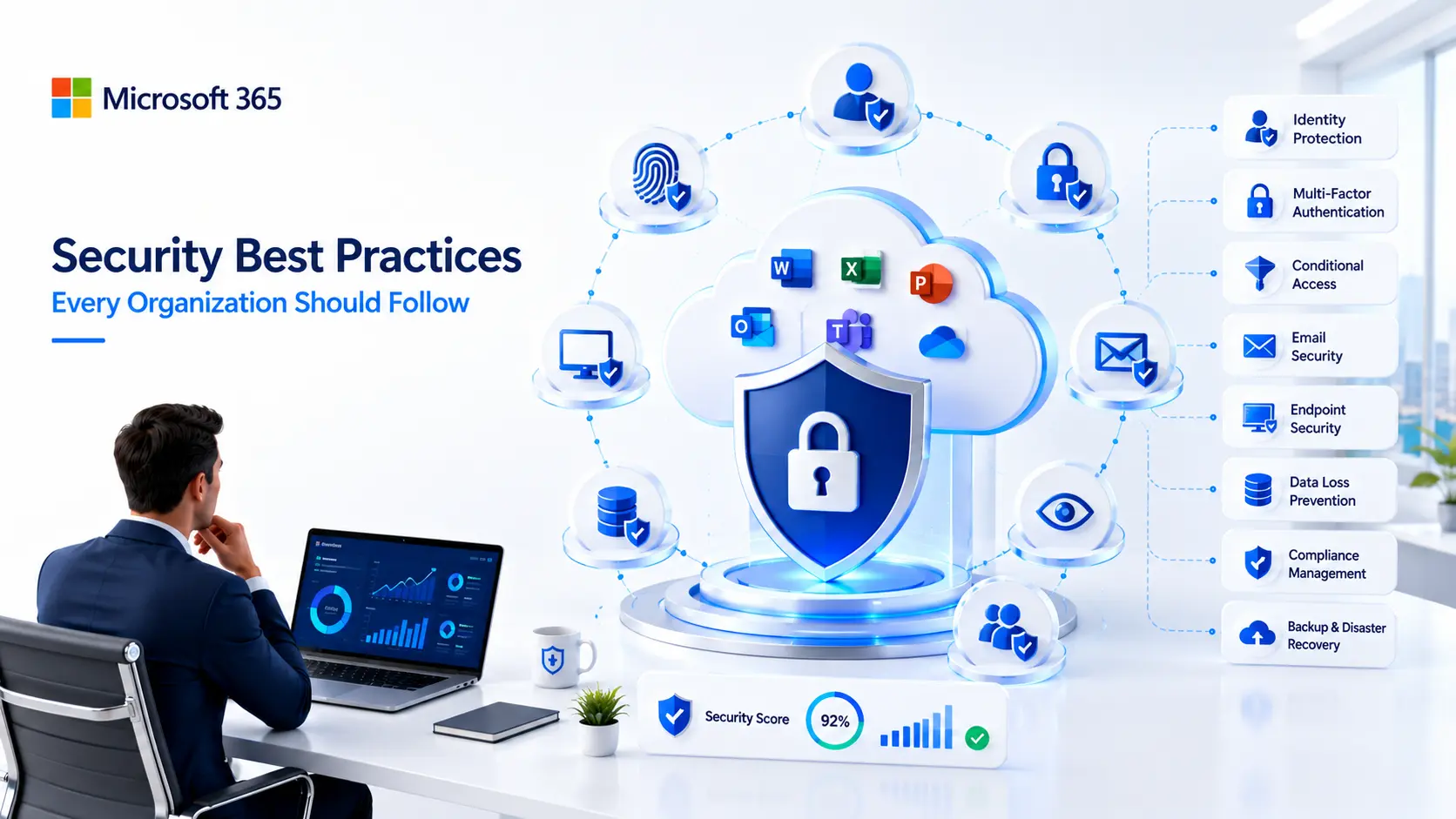
Microsoft 365 Security Best Practices Every Organization Should Follow
Turning on Microsoft 365 is not the same as securing it.Microsoft 365 is the operational backbone of more than 3.7 million organizations worldwide. It handles email, file storage, identity management, collaboration, and increasingly AI-powered workflows through Microsoft Copilot. That same ubiquity makes it one of the most targeted platforms in the world. Attackers are not breaking through firewalls to reach your data. They are signing in through misconfigured tenants, exploiting legacy authentication protocols, and taking advantage of overly permissive sharing settings that most organizations never review.
The Microsoft 365 security best practices in this guide represent what every organization should have in place in 2026. Not advanced optional extras. Not enterprise-only features. The baseline every business needs to avoid becoming the next breach headline. We cover identity, email, devices, data, compliance, AI governance, and how NG Cloud Security helps organizations implement and maintain these controls.
Understanding the Microsoft 365 Shared Responsibility Model
One of the most common and dangerous misconceptions about Microsoft 365 is that Microsoft handles all security automatically. It does not.
Microsoft is responsible for the security of the platform itself — the physical datacenters, the network infrastructure, and the availability of services. Your organization is responsible for everything that happens inside your tenant. That includes how users authenticate, how data is shared, how devices are managed, which applications are connected, and how administrators are granted access.
The gap between what Microsoft provides by default and what your organization actually needs is where most breaches occur. Microsoft ships default configurations that priorities ease of use and fast deployment. Those defaults are not designed to be a finished security posture. They are the starting point. The Microsoft 365 security best practices below close the distance between where most organizations start and where they need to be.
1. Enforce Multi-Factor Authentication for Every User
MFA is the single most effective control available in Microsoft 365. Microsoft’s own research shows that MFA blocks more than ninety-nine point nine per cent of automated account compromise attacks. Despite this, many organizations still have users signing in with a password alone.
MFA enabled is not the same as MFA enforced. Many tenants have MFA available, but allow users to bypass it, or have legacy authentication protocols open that let attackers route around MFA entirely. Proper enforcement requires Conditional Access policies that require MFA for every sign-in and block authentication attempts that do not pass through a modern authentication protocol.
Start with administrators, finance, payroll, and anyone with access to sensitive data. Roll out to the rest of the organization in stages to give your IT team time to handle exceptions and support users through the transition. Microsoft Authenticator is the recommended default method. It is easier to support than SMS-based methods and significantly more secure.
For administrator accounts, standard MFA is not sufficient. Microsoft recommends requiring phishing-resistant authentication methods such as FIDO2 security keys or Windows Hello for Business. These methods cannot be intercepted by phishing proxy attacks because the authentication is cryptographically bound to the device.
2. Configure Conditional Access Policies
Conditional Access is the policy engine in Microsoft Entra ID that evaluates the context of every sign-in and decides whether to allow it, block it, or require additional verification. Without it, MFA alone leaves significant gaps.
Every organization using Microsoft 365 with Entra ID P1 or higher should have at minimum the following Conditional Access policies in place:
- Require MFA for all users across all applications
- Require phishing-resistant MFA for all administrator roles
- Block legacy authentication protocols including POP3, IMAP, and SMTP AUTH
- Require a compliant or hybrid-joined device for access to corporate resources
- Apply sign-in risk and user risk policies if Entra ID P2 licensing is available
- Restrict access to admin portals with stronger authentication requirements
Deploy every policy in Report-Only mode before enforcement. Use the What If tool in Microsoft Entra to simulate the impact on specific users before any policy goes live. Always maintain at least two emergency access accounts excluded from all Conditional Access policies with credentials stored securely offline. Losing access to these accounts during a misconfiguration can lock administrators out of the entire tenant.
Organizations that combine Conditional Access with Microsoft Intune device compliance policies create a closed loop where every sign-in is evaluated against both user identity and device health before access is granted.
3. Apply the Principle of Least Privilege to Admin Roles
The Global Administrator role in Microsoft 365 provides unrestricted access to the entire tenant. It should be used as rarely as possible and assigned to the minimum number of accounts necessary. Microsoft recommends between two and four Global Administrator accounts. Most organizations we assess have significantly more than that.
Instead of defaulting to Global Administrator for IT staff, assign more granular roles that match the tasks each person actually performs. Exchange Administrator for email management. User Administrator for account management. Security Administrator for security configuration. If a compromised admin account has a granular role, the blast radius of the breach is limited. If it has Global Administrator, the attacker owns the entire tenant.
For organizations with Entra ID P2 licensing, Privileged Identity Management provides just-in-time access to elevated roles. Instead of permanent role assignments, administrators request elevation when needed, complete an approval workflow, and have access automatically revoked after a time-limited window. This approach eliminates standing privilege that attackers can exploit even when an account is not actively being used.
CISA has specifically highlighted reducing Global Administrator accounts and applying least privilege as a priority security recommendation for Microsoft 365 environments.
4. Secure Email With Microsoft Defender for Office 365
Email remains the number one attack vector targeting Microsoft 365. Business Email Compromise attacks cost organizations over 2.9 billion dollars globally according to FBI reporting, and that figure grows every year. The built-in email security included with most Microsoft 365 plans provides a foundation, but it requires active configuration to provide meaningful protection.
Configure anti-phishing policies with impersonation protection for key executives, domains, and high-value internal users
- Configure anti-phishing policies with impersonation protection for key executives, domains, and high-value internal users
- Enable Safe Links for all users. Safe Links rewrites URLs in emails and documents and scans the destination in real time at the moment of click, not at the moment of delivery
- Enable Safe Attachments for all users. Safe Attachments detonates every email attachment in an isolated sandbox environment before delivery, blocking malicious files before they reach the inbox
- Configure SPF, DKIM, and DMARC for every sending domain. These email authentication standards prevent attackers from sending spoofed emails that appear to come from your domain. DMARC should be set to reject or quarantine, not monitor only
- Review mail flow rules regularly for any rules that bypass spam or malware filtering
Teams is frequently overlooked in email security planning. External access in Teams should be controlled, guest permissions reviewed regularly, and file sharing inside Teams should follow the same governance policies applied to SharePoint.
5. Manage Devices With Microsoft Intune
Every device that accesses Microsoft 365 data is a potential entry point for attackers. Without device management, an attacker who compromises a personal laptop with a saved browser session has access to everything that user can reach in Microsoft 365 — email, SharePoint, Teams, and OneDrive.
Microsoft Intune provides device enrollment, compliance policy enforcement, and mobile application management for corporate and personally owned devices. Organizations should:
- Define device compliance policies that require encryption, a minimum OS version, active antivirus protection, and a PIN or password
- Use Conditional Access to require device compliance before granting access to corporate resources
- Deploy Microsoft Defender for Endpoint to managed devices for endpoint detection and response capabilities
- For personally owned mobile devices where full enrollment is not practical, use Mobile Application Management policies that protect corporate data within managed apps without requiring control of the entire device
- Review and audit MDM configuration regularly. Recent threat intelligence has identified attackers abusing MDM platforms to issue remote wipe commands as a destructive attack against device fleets
Organizations that have not implemented device management are relying on identity controls alone to protect corporate data. Identity controls are necessary but not sufficient. A compliant managed device adds a second layer that significantly limits what an attacker can do even with valid credentials.
Not Sure If Your Microsoft 365 Environment Follows Security Best Practices?
NG Cloud Security provides Microsoft 365 security assessments that identify gaps across identity, email, devices, data, and compliance. We deliver clear findings and a prioritized remediation roadmap your team can act on immediately.
👉 Book Your Free Microsoft 365 Security Consultation
6. Protect Data with Microsoft Purview
Microsoft 365 contains some of the most sensitive data in your organization. Without active data protection controls, that data can be shared externally without IT visibility, accessed by users who should not have permission, or exfiltrated through email or file sharing channels.
- Configure Data Loss Prevention policies in Microsoft Purview to detect and block the sharing of sensitive data types including personally identifiable information, financial records, and health data across Exchange, SharePoint, OneDrive, and Teams
- Apply sensitivity labels to classify and protect documents and emails based on their content. Sensitivity labels can enforce encryption, restrict forwarding, and control access regardless of where the file travels
- Review and restrict external sharing settings for SharePoint and OneDrive. The default configuration in many tenants allows anonymous sharing links that let any file be shared with anyone, including unauthenticated external users, with no IT visibility
- Enable unified audit logging. The Microsoft 365 Unified Audit Log captures activity events across Exchange, SharePoint, OneDrive, Teams, Entra ID, and other services. It must be explicitly enabled and configured with an appropriate retention period to support incident investigation
- Audit and clean up third-party OAuth applications connected to your tenant. These applications can retain access to email, files, and calendar data long after they are no longer actively used
Data sprawl is one of the most significant challenges in Microsoft 365 environments. Files accumulate in SharePoint and OneDrive over years. Permissions expand through reorganizations and team changes. Overshared content that once stayed buried in a folder can now be surfaced instantly through Microsoft Copilot searches. Before deploying Copilot, organizations need data governance in place.
7. Monitor With the Unified Audit Log and Microsoft Secure Score
Security controls that are not monitored are controls you cannot rely on. Microsoft 365 provides two primary tools for ongoing visibility that every organization should be using actively.
The Microsoft 365 Unified Audit Log records events across every major Microsoft 365 service. It is the foundation for any security investigation inside your tenant. Enable it if it is not already active, configure retention to meet your compliance requirements, and integrate it with Microsoft Sentinel or your SIEM platform for automated alerting and correlation.
Microsoft Secure Score in the Microsoft Defender portal evaluates your tenant configuration against Microsoft’s recommended security practices and produces a percentage score. The average enterprise scores between thirty five and fifty percent. Organizations in regulated industries should target seventy five percent or higher. Use Secure Score as a living roadmap rather than a one-time metric. It updates as Microsoft adds new recommendations and as your configuration changes.
Review your Secure Score quarterly and after any significant change to your environment. Identify the highest-impact improvement actions and schedule them into your regular IT operations rather than treating them as a separate security project.
8. Back Up Your Microsoft 365 Data
Microsoft ensures platform availability and protects against infrastructure failures. Microsoft does not provide comprehensive backup protection against accidental deletion, ransomware encryption, or insider threat scenarios. This is a widely misunderstood aspect of the Microsoft 365 shared responsibility model.
If a user accidentally deletes a SharePoint site, ransomware encrypts files synced to OneDrive, or a malicious insider deletes email records, Microsoft’s native retention policies may not recover what you need. Recovery windows are limited and depend heavily on whether retention policies were configured correctly before the incident.
Implement a third-party backup solution that covers Exchange Online, SharePoint, OneDrive, and Teams. Test recovery processes regularly. Do not assume your data is protected until you have verified that you can restore it from a real backup in a reasonable timeframe.
9. Govern Microsoft Copilot Before and After Deployment
Microsoft 365 Copilot is now licensed by over two million organizations as of Q1 2026. Copilot accesses email, documents, Teams messages, calendar data, and SharePoint content through Microsoft Graph. A compromised Copilot session or a Copilot query from an over permissioned user can surface far more sensitive data than a compromised mailbox alone.
Organizations deploying Copilot must address data governance before deployment, not after. Research shows that over fifteen percent of business-critical files are at risk from oversharing and inappropriate permissions in typical Microsoft 365 environments. Copilot does not create these exposure risks — it makes existing oversharing immediately searchable and actionable.
- Review and remediate overshared content in SharePoint and OneDrive before enabling Copilot. Use SharePoint Advanced Management data access governance reports to identify sites with excessive permissions
- Apply sensitivity labels to documents containing confidential data so Copilot cannot surface them for users who should not have access
- Configure DLP policies in Microsoft Purview specifically for Copilot to block sensitive data types from appearing in AI-generated responses
- Enable Copilot audit logging through Microsoft Purview to capture prompt and response content for compliance, insider threat detection, and regulatory audit requirements
- Establish acceptable use policies for Copilot before users begin working with it. Define what types of data employees may query and how to report unexpected results
In early 2025, security researchers disclosed a zero-click vulnerability in Microsoft 365 Copilot known as EchoLeak that demonstrated how overshared data combined with AI access can create new categories of exposure. Microsoft patched this vulnerability, but it illustrates why data governance is a prerequisite for AI deployment, not an afterthought.
10. Train Employees and Build a Security-Aware Culture
Technology controls reduce risk but cannot eliminate human error. Phishing attacks, social engineering, and business email compromise all depend on users making mistakes under pressure. Security awareness training reduces the likelihood of those mistakes and builds the organizational reflex to pause and verify before clicking.
Microsoft 365 Defender for Office 365 Plan 2 includes Attack Simulator, which lets you run realistic phishing simulations against your own users to measure susceptibility and target training to the people who need it most. Organizations that run regular phishing simulations see measurable reductions in click rates over time.
Training should be ongoing, not annual. A single annual training session produces minimal behavioral change. Monthly short-form content, regular simulations, and timely communications about active threats relevant to your industry are significantly more effective than a once-a-year compliance exercise.
A single well-trained employee who recognizes a phishing email and reports it before clicking can prevent an incident that would cost the organization far more than its entire annual security training budget.
How NG Cloud Security Helps Organizations Follow Microsoft 365 Security Best Practices
Most organizations using Microsoft 365 already have access to the tools needed to implement every best practice in this guide. The challenge is rarely the technology. It is the time, expertise, and consistent governance required to configure everything correctly, keep it current, and respond when something goes wrong.
NG Cloud Security provides managed Microsoft 365 security services for organizations that want expert oversight of their environment without building a full internal security team. Our services include:
- Microsoft 365 security assessments that identify which best practices are not yet in place and produce a prioritized remediation roadmap
- Microsoft Intune device compliance configuration and monitoring
- Microsoft Defender for Office 365 configuration and ongoing tuning to reduce false positives and improve email threat detection
- Microsoft Purview data protection setup including DLP policies, sensitivity labels, and external sharing controls
- Unified Audit Log integration with SIEM platforms for continuous monitoring and alerting
- Microsoft Copilot security readiness assessments and governance implementation
- Managed SOC services providing twenty-four-hour threat monitoring, incident response, and expert analyst oversight
- Conditional Access policy design, deployment, and ongoing management including Report-Only validation before every enforcement change
Organizations that work with NG Cloud Security come away with a Microsoft 365 environment that reflects the best practices in this guide, maintained continuously rather than configured once and forgotten. We handle the complexity so your team can focus on the work that drives your business forward.
Benefits of Following Microsoft 365 Security Best Practices
Organizations that implement the security best practices in this guide consistently see measurable improvements across several areas.
- Dramatically reduced risk of account compromise through layered identity and authentication controls
- Stronger protection against phishing, malware, and business email compromise through properly configured Defender for Office 365
- Improved compliance readiness for ISO 27001, SOC 2, HIPAA, GDPR, and CIS Controls
- Documented evidence of security controls that supports cyber insurance applications and premium negotiations
- Safer Microsoft Copilot adoption with data governance in place before AI tools begin surfacing content
- Greater visibility into user activity, data movement, and security events through unified audit logging
- Lower total cost of security incidents through prevention and faster detection rather than reactive response
Frequently Asked Questions
Is Microsoft 365 secure out of the box?
Microsoft 365 provides a strong security foundation, but the default configuration is designed for ease of deployment, not maximum protection. Several critical security features including Conditional Access policies, Safe Links, Safe Attachments, DMARC enforcement, Data Loss Prevention, and device compliance requirements are either not configured by default or require additional licensing and setup. Organizations that rely on default settings are typically exposed to account compromise through legacy authentication, phishing through insufficient email controls, and data exposure through overly permissive sharing configurations. A formal security assessment identifies which gaps exist in your specific environment.
What is the most important Microsoft 365 security best practice?
If a single control had to be named, it is enforcing MFA through Conditional Access for every user. Microsoft reports that MFA blocks more than ninety nine point nine percent of automated account compromise attacks. However, MFA alone is not sufficient if legacy authentication protocols remain open, because attackers can route around MFA using those protocols. The combination of enforcing MFA through Conditional Access and blocking legacy authentication simultaneously eliminates the most common attack path against Microsoft 365 identities. After that foundation is in place, the next highest-impact controls are securing admin roles with phishing-resistant MFA and configuring Safe Links and Safe Attachments for email protection.
How do I improve my Microsoft Secure Score?
Microsoft Secure Score is found in the Microsoft Defender portal at security.microsoft.com. It provides a prioritized list of improvement actions organized by category including identity, devices, apps, and data. The highest-impact actions for most organizations are enforcing MFA for all users, blocking legacy authentication, configuring Safe Links and Safe Attachments, enabling unified audit logging, and reducing the number of Global Administrator accounts. Rather than chasing the score number, focus on improvement actions that represent real risk reduction for your environment. Review Secure Score quarterly and after significant configuration changes. The average enterprise scores between thirty five and fifty percent. Organizations in regulated industries should target seventy five percent or higher.
What Microsoft 365 security features are included by default and which require additional licensing?
Basic anti-spam, anti-malware, and anti-phishing protection are included with all Microsoft 365 plans at no additional cost. MFA through Security Defaults is free. Conditional Access policies require Entra ID P1, included in Microsoft 365 Business Premium and E3. Safe Links and Safe Attachments require Microsoft Defender for Office 365 Plan 1, included in Business Premium, or Plan 2, included in E5. Risk-based Conditional Access using sign-in risk and user risk requires Entra ID P2, included in E5. Privileged Identity Management requires Entra ID P2. Data Loss Prevention and sensitivity labels are available across most plans with varying capability levels. Microsoft Copilot requires a separate add-on license.
How do I secure Microsoft 365 for a remote or hybrid workforce?
Securing Microsoft 365 for remote and hybrid workers requires the same best practices as any environment but with additional focus on device management and location-based controls. Ensure every remote worker’s device is enrolled in Microsoft Intune and passes device compliance policies before accessing corporate resources. Configure Conditional Access to require compliant devices for access to sensitive applications. Define named locations for office networks and VPN exit points, then require MFA or apply stricter controls for sign-ins from outside those trusted ranges. Apply Mobile Application Management policies for personally owned mobile devices so corporate data is protected within managed apps without requiring full device control. Use Microsoft Defender for Endpoint on all managed devices for continuous endpoint monitoring and threat detection.
How often should Microsoft 365 security best practices be reviewed and updated?
Microsoft releases security updates, new features, and revised recommendations on a continuous basis. Conditional Access policies and Secure Score improvement actions should be reviewed quarterly at minimum. A comprehensive formal review of all Microsoft 365 security configurations should happen at least annually. Additional reviews should be triggered by significant events such as a merger or acquisition, a major licensing change, the addition of Microsoft Copilot, a security incident, new regulatory requirements, or a significant change to how your workforce accesses the environment. Organizations without internal security expertise benefit from working with a managed security provider who reviews configurations on their behalf and alerts them to changes in the threat landscape or Microsoft’s security recommendations.
Final Thoughts
Microsoft 365 gives every organization access to enterprise-grade security tools. Whether those tools are configured correctly, maintained over time, and actually protecting your environment depends entirely on your organization, not on Microsoft.
The Microsoft 365 security best practices in this guide are not aspirational targets for large enterprises. They are the minimum standard every organization should be working toward in 2026. Most of them are achievable with the licensing most businesses already have. What they require is time, expertise, and consistent follow-through.
The gap between having Microsoft 365 and having Microsoft 365 secured is where attackers live. Closing that gap is the most effective investment any organization can make in its security posture this year.
Ready to Secure Your Microsoft 365 Environment?
Talk to our cybersecurity specialists about Microsoft 365 security best practices, assessments, managed SOC services, and cloud security solutions tailored to your business.
