

Microsoft 365 Defender Alert Tuning: Best Practices to Reduce False Positives
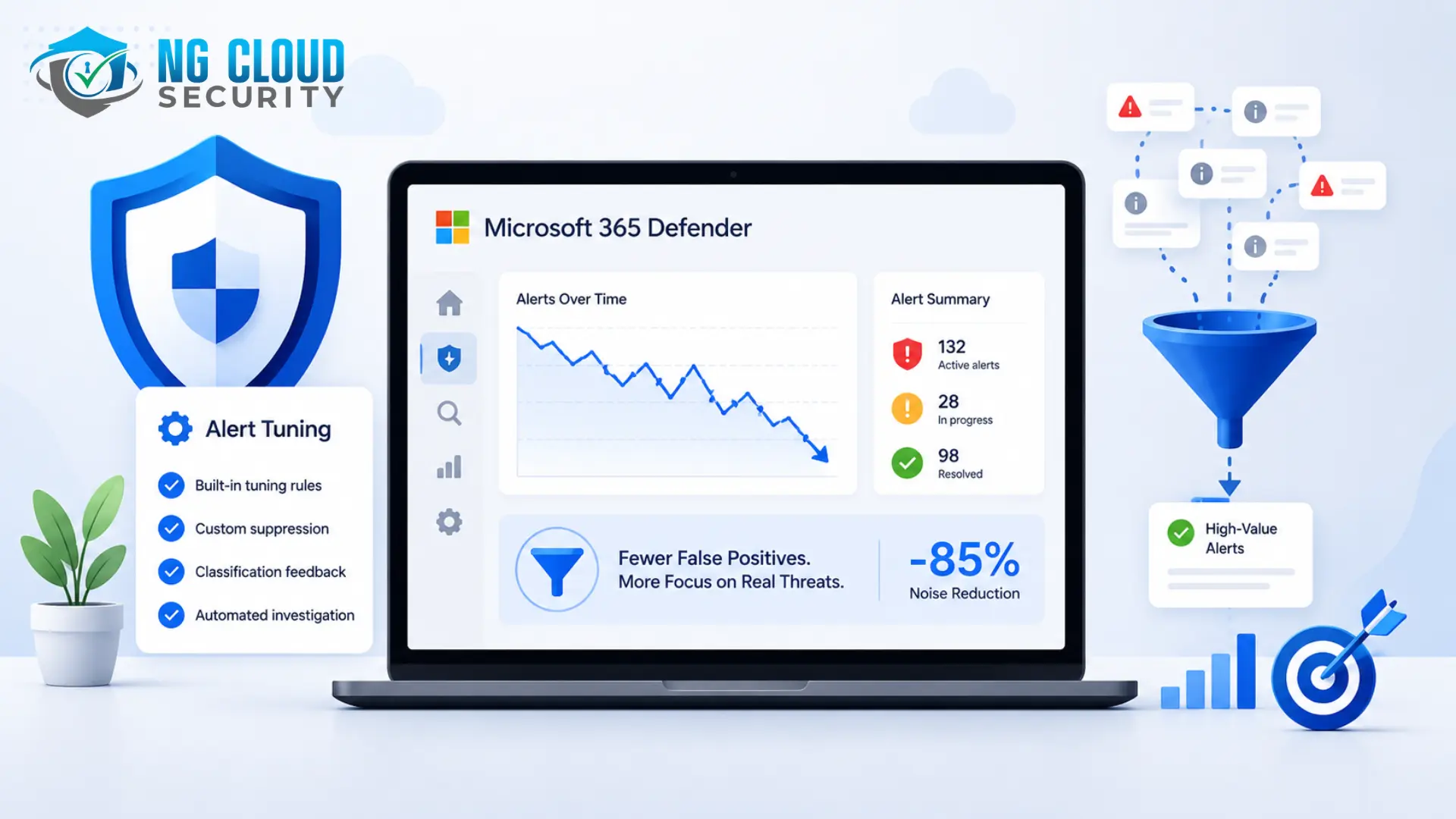
The Microsoft/Omdia State of the SOC 2026 report found that forty six percent of all security alerts turn out to be false positives. Nearly half of every analyst’s workload generates no security value at all. In Microsoft Defender environments that have never been tuned, that number climbs even higher — roughly eighty-five per cent of alerts are false positives or low-value noise, and analysts in those environments spend up to six hours per shift just triaging alerts that never needed a second look.
That is not a Defender problem specifically. It is an industry-wide pattern. Forrester reports SOC teams now receive an average of eleven thousand alerts a day, while only twenty-two per analyst actually require real investigation. But Microsoft 365 Defender, formerly Microsoft 365 Defender XDR, gives you more built-in tools to fix this than most platforms do — if you know where to look and how to use them correctly.
This guide is a deep look at alert tuning in Microsoft 365 Defender: what it actually is, how the built-in tuning rules work, how to layer custom rules without creating blind spots, how to tune email and endpoint detections separately, and how to close the feedback loop so the platform gets smarter every time your team classifies an alert.
What Is Alert Tuning in Microsoft 365 Defender?
Alert tuning, formerly called alert suppression, is a Microsoft Defender XDR capability that automatically resolves or hides alerts that match known benign patterns, so they never reach your active analyst queue. It is found in the Microsoft Defender portal under Settings, then Defender XDR, then Alert tuning.
Tuning comes in two forms. Built-in tuning rules are created and maintained by Microsoft, based on common benign activity patterns observed across many organisations. Custom tuning rules are ones your own team builds for patterns specific to your environment — an internal application that behaves unusually but safely, for example, or a recurring security test that always trips the same detection.
A critical detail that separates real alert tuning from simply hiding problems: when a built-in tuning rule suppresses an alert, Automated Investigation and Response (AIR) keeps investigating it in the background. If that background investigation finds something genuinely risky, the alert is automatically reopened with a New status and sent back to the analyst queue. Tuning acts as a smart filter, not a gap in your coverage.
Why Alert Tuning Matters More in 2026
- Untuned Defender environments waste enormous analyst time: Roughly eighty five percent of alerts in untuned Defender environments are false positives or low-value noise, and analysts can spend up to six hours per shift on triage that produces no real security outcome.
- Microsoft’s own data confirms the scale of the problem: The Microsoft/Omdia State of the SOC 2026 report found forty six percent of all alerts across the industry are false positives — a problem large enough that Microsoft built native tuning directly into Defender XDR rather than leaving it entirely to third-party tools.
- Built-in tuning coverage expanded significantly this year: Microsoft shipped eighteen built-in tuning rules for Defender for Office 365 in February 2026, covering user-reported spam, quarantine release requests, and Tenant Allow and Block List notifications. General availability for Defender for Endpoint tuning rules followed in May 2026, and Microsoft has committed to expanding coverage across more workloads.
- Missed low-severity alerts are not a small risk: Forensic analysis of more than twenty-five million alerts found that nearly one per cent of confirmed incidents originated from alerts initially labelled low-severity or informational — climbing to almost two per cent on endpoints. For a typical organisation, that is roughly fifty real threats a year that never get investigated.
- Licensing for AI-driven agent protection is changing in July 2026: New Entra Conditional Access for Agents and Entra ID Protection for Agents service plans require a Microsoft 365 Agent or E7 license starting in July 2026. Organisations using agent-related security capabilities in Defender need to confirm their licensing ahead of this change.
Step 1: Establish Your Classification Baseline Before Tuning Anything
- Classify every closed alert as true or false positive: Every time an alert is marked true positive, false positive, or informational/expected activity, that classification helps train Defender’s detection models to produce more accurate alerts over time. Skipping this step means you tune the same noise indefinitely instead of reducing it at the source.
- Know which determination values are still valid: The Apt and SecurityPersonnel determination values were deprecated in August 2022 and are no longer available through the API. Make sure any automation or reporting built on alert classifications reflects current, supported values.
- Document your reasoning with comments: Add a comment explaining why an alert was classified a certain way. This history becomes essential context the next time a similar alert appears — for your team and for anyone auditing your tuning decisions later.
- Understand where alerts come from before you touch anything: Alerts in Defender XDR pull from Defender for Endpoint, Defender for Office 365, Defender for Identity, Defender for Cloud Apps, Microsoft Entra ID Protection, Microsoft Purview DLP, and Microsoft Sentinel. Know which source generated an alert before deciding how to tune it, since the correct fix is often different for each.
Step 2: Turn On Built-In Tuning Rules First
- Check what Microsoft already tunes for you: Before building anything custom, review the built-in tuning rules available in Settings, then Defender XDR, then Alert tuning. The initial release alone covers eighteen common Office 365 patterns — reviewing these first avoids duplicating work Microsoft has already done.
- Trust the background investigation, not blind suppression: Built-in tuning rules do not simply delete alerts. AIR continues investigating suppressed alerts in the background, and reopens them automatically if risk is detected. This is fundamentally different from a blunt suppression rule that hides an alert permanently regardless of what happens next.
- Expect coverage to keep expanding: Endpoint tuning rules only reached general availability in May 2026, after Office 365 rules launched in February. Revisit the built-in rule list periodically, since Microsoft has stated it will keep adding coverage across additional Defender XDR workloads.
Step 3: Layer Custom Tuning Rules Carefully, Not Broadly
- Reserve custom rules for known, explainable patterns: Microsoft’s own guidance is direct: use alert tuning with caution, for scenarios where known internal business applications or security tests trigger expected activity — not as a general-purpose way to reduce alert volume.
- Build rules from the alert details page when possible: Creating a custom tuning rule directly from a specific alert keeps the rule tightly scoped to the pattern you actually observed, rather than a broad guess at what else might look similar.
- Know the scope limits of suppression actions: Some alert-hiding actions remove an alert from the queue and incident correlation entirely, while the underlying data remains available for hunting — but this specific action isn’t supported for every workload, including Defender for Cloud and Defender for Office 365 alerts. Confirm what a given suppression action actually does in your specific workload before relying on it.
- Never use suppression to patch a broken custom detection rule: Alert suppression is explicitly not compatible with custom detections in Defender for Endpoint. If a custom detection rule is noisy, the fix is tuning the detection logic itself, not suppressing its output afterwards.
Still Drowning in False Positives Despite Using Defender’s Native Tools?NG Cloud Security audits your Defender XDR alert configuration, builds properly scoped custom tuning rules, and fixes noisy custom detections at the source instead of masking them with suppression
Step 4: Tune Email and Anti-Phishing Protection Separately
- Use Threat Explorer to find real false positives: Search Threat Explorer and real-time detections by sender, recipient, or message ID to find legitimate messages that were quarantined by mistake, or genuinely bad messages that were delivered when they should not have been.
- Review spoof intelligence regularly: Some spoofing detections are benign. Periodically review spoof intelligence insights to identify senders your users actually want, then configure the appropriate overrides before quarantining suspicious messages more aggressively.
- Report false positives and false negatives to Microsoft: User and admin reporting of incorrect verdicts is a critical positive reinforcement signal for Microsoft’s detection models. Configure user-reported message settings to route reports to your security team, to Microsoft, or both, and have your team actively submit ad hoc false positives they discover on their own.
- Let the Phishing Triage Agent handle scale, where available: Organisations with Defender for Office 365 Plan 2 and Security Copilot can use the Phishing Triage Agent, which automatically investigates user-reported phishing at scale — analysing content, detonating suspicious links and files in a sandbox, and producing a transparent, natural-language verdict that either closes the alert or escalates it with full context.
Step 5: Fix Detection Quality at the Endpoint Source
- Identify the actual detection source first: Review the alert’s source — Microsoft Defender Antivirus, cloud-delivered protection, a custom detection rule, or another engine — since the correct remediation differs depending on where the false positive originated.
- Turn on cloud-delivered protection if it isn’t already: Cloud-delivered protection defaults to Not Configured in many environments. Microsoft recommends turning it on, since it materially improves detection accuracy over signature-based methods alone.
- Review potentially unwanted application (PUA) settings: PUA detections can cause unexpected slowdowns or ad-related false alarms. Adjust these settings deliberately rather than leaving default thresholds in place for every device population.
- Use the correct suppression path for Endpoint alerts: Endpoint-specific alert suppression is configured separately, under Settings, then Endpoints, then Rules, then Alert suppression — distinct from the broader Defender XDR alert tuning settings, and intended for entity-specific noise, not systemic detection problems.
Step 6: Close the Loop with AI-Assisted Triage
- Treat classification as training data, not paperwork: Every true/false positive classification improves future detection accuracy. Teams that skip consistent classification never actually reduce their false-positive rate — they just keep re-triaging the same noise indefinitely.
- Use AI triage to handle volume, not judgment: Industry data shows AI-powered triage can automate the large majority of Tier 1 alert investigation, but Gartner cautions that AI-enabled SOCs do not reduce staffing needs on their own — they reshape what your analysts spend their time doing, shifting them toward genuine investigation and detection engineering.
- Set a feedback SLA for tuning requests: A practical model used by mature SOC teams: every analyst false-positive verdict generates a tuning request with a short implementation SLA, commonly around seven days. When analysts see their feedback actually reduce future noise, they stay engaged with the process instead of disengaging from it.
Tools for Microsoft 365 Defender Alert Tuning
- Microsoft Defender portal — Alert tuning: Settings, then Defender XDR, then Alert tuning, for both built-in and custom tuning rules.
- Threat Explorer and real-time detections: Search and remediate false positives and false negatives in email by sender, recipient, or message ID.
- Tenant Allow/Block List: Manage short-term overrides for domains, senders, URLs, and files, submitted through admin submissions rather than direct edits.
- Automated Investigation and Response (AIR): Runs background investigations on tuned alerts and reopens them automatically if risk is detected.
- Microsoft Security Copilot — Phishing Triage Agent: Autonomously investigates user-reported phishing emails at scale for organisations with Defender for Office 365 Plan 2.
- Advanced Hunting (KQL): Query suppressed or tuned alert data directly, since underlying behavioural data remains available for hunting even when an alert is hidden from the queue.
- Microsoft Graph Security API and Event Streaming API: Bulk classification reporting, automated tuning-request workflows, and integration with external SIEM or SOAR platforms.
The Most Common Alert Tuning Mistakes
- Suppressing alerts instead of fixing the underlying noisy custom detection rule — suppression isn’t even compatible with custom detections in Defender for Endpoint
- Building custom tuning rules before checking whether a built-in rule already covers the same pattern
- Never classifying alerts as true or false positive, which quietly removes the feedback that would otherwise improve detection accuracy over time
- Applying suppression actions to workloads where they are not supported, such as certain queue-hiding actions on Defender for Cloud or Defender for Office 365 alerts
- Treating every low-severity or informational alert as safe to ignore, despite forensic data showing nearly one percent of confirmed incidents start there
- Never reporting false positives or false negatives back to Microsoft, missing a direct opportunity to improve the platform’s detection models
- Tuning email and endpoint alerts with the same broad approach, instead of using the distinct tools built for each — Threat Explorer for email, alert suppression rules for endpoint
How NG Cloud Security Helps Reduce Alert Fatigue in Microsoft Defender
Native Defender tuning tools are powerful, but using them well takes ongoing attention most internal security teams do not have time for. NG Cloud Security builds and maintains alert tuning programs specifically for Microsoft 365 Defender environments.
- A full audit of your current alert volume, false-positive rate, and existing tuning configuration
- Properly scoped custom tuning rules that address real environment-specific noise without creating blind spots
- Root-cause fixes for noisy custom detection rules, instead of suppression used as a workaround
- Anti-phishing and email protection tuning using Threat Explorer, spoof intelligence review, and structured admin submissions
- A classification discipline and comment standard that actually feeds Defender’s detection models over time
- Ongoing quarterly review as Microsoft expands built-in tuning coverage across additional workloads
How Often Should You Review Your Alert Tuning Configuration?
- Review built-in tuning rule coverage quarterly, since Microsoft continues to expand which workloads and patterns are covered.
- Review custom tuning rules on the same cycle, retiring any that no longer reflect real, current environment patterns.
- Set a short feedback SLA, commonly around seven days, so analyst-reported false positives turn into actual tuning changes quickly.
- Trigger an immediate review after any security tool migration, new application rollout, or major infrastructure change, since these predictably spike alert volume.
Benefits of Proper Alert Tuning in Microsoft 365 Defender
- Cuts wasted analyst time spent triaging the same known-benign alerts repeatedly
- Preserves coverage instead of creating blind spots, since AIR keeps investigating tuned alerts in the background
- Feeds Defender’s own detection models through consistent classification, improving accuracy over time
- Reduces the risk that a genuine threat hides inside a stream of low-severity, unreviewed alerts
- Frees analysts to spend time on real investigation and detection engineering instead of repetitive triage
Frequently Asked Questions
What is alert tuning in Microsoft 365 Defender?
Alert tuning, formerly called alert suppression, automatically resolves or hides Microsoft Defender XDR alerts that match known benign patterns, keeping them out of the active analyst queue. It comes in two forms: built-in tuning rules maintained by Microsoft, and custom tuning rules your own team creates for patterns specific to your environment. Even when an alert is tuned out of the queue, background investigation continues, and the alert reopens automatically if real risk is found.
How do you reduce false positives in Microsoft Defender?
Start with Microsoft’s built-in tuning rules before building custom ones, since they already cover common benign patterns across Office 365 and Endpoint workloads. Consistently classify every closed alert as true or false positive to train Defender’s detection models. Use Threat Explorer to find and fix email false positives specifically, and report false positives and negatives back to Microsoft through admin submissions. For endpoint alerts, fix the underlying noisy detection rule rather than suppressing its output.
What is the difference between alert tuning and alert suppression?
Microsoft now uses “alert tuning” as the umbrella term for what was previously called alert suppression. In practice, tuning includes both Microsoft’s built-in rules and custom rules your team creates, and applies more broadly across Defender XDR. Endpoint-specific alert suppression, configured separately under Settings, Endpoints, Rules, then Alert suppression, remains a distinct, more narrowly scoped tool for entity-specific noise on Defender for Endpoint.
How do built-in Defender alert tuning rules work?
Built-in tuning rules automatically triage low-severity alerts that match known benign activity patterns Microsoft has identified across many organisations. The initial release included eighteen rules for Defender for Office 365, covering things like user-reported spam and Tenant Allow/Block List notifications, launched in February 2026. General availability for Defender for Endpoint tuning rules followed in May 2026. Suppressed alerts are not simply dropped — Automated Investigation and Response keeps investigating them and reopens any that show real risk.
How do you tune Defender for Office 365 anti-phishing alerts?
Use Threat Explorer and real-time detections to search for legitimate messages that were quarantined by mistake or bad messages that were delivered when they shouldn’t have been, searching by sender, recipient, or message ID. Periodically review spoof intelligence to identify benign spoofed senders and configure appropriate overrides. Configure user-reported message settings to route reports to your team and to Microsoft, and have your security team submit ad hoc false positives and false negatives through admin submissions.
What is the most common alert tuning mistake?
Using suppression to hide the output of a noisy custom detection rule instead of fixing the rule itself. This does not work in Defender for Endpoint, since alert suppression is explicitly not compatible with custom detections. A close second is skipping alert classification entirely, which quietly removes the feedback signal that would otherwise improve Defender’s detection accuracy over time.
Can tuning alerts cause you to miss a real threat?
Used correctly, no. Built-in tuning rules suppress an alert from the active queue, but Automated Investigation and Response continues investigating it in the background and automatically reopens it if elevated risk is detected. The real risk comes from broad, poorly scoped custom suppression rules built without understanding what pattern they are actually matching, or from suppressing alerts as a substitute for fixing a genuinely broken detection rule.
Final Thoughts
Alert tuning is not about making Defender quieter for its own sake. It is about making sure the alerts your team actually sees are the ones worth their attention — and that everything else is still being watched in the background, not simply discarded.
Organizations that lean on Microsoft’s built-in tuning rules first, layer custom rules carefully, fix noisy detections at the source, and consistently classify what they close end up with a Defender environment that gets sharper over time instead of noisier. The ones that skip classification, suppress broadly, and never report false positives back to Microsoft stay stuck at the same eighty five percent noise ratio indefinitely.
Ready to Cut Through the Noise in Your Defender Environment?
Talk to our security operations specialists about auditing your alert volume, tuning built-in and custom rules correctly, and fixing false positives at the source instead of just hiding them.
