

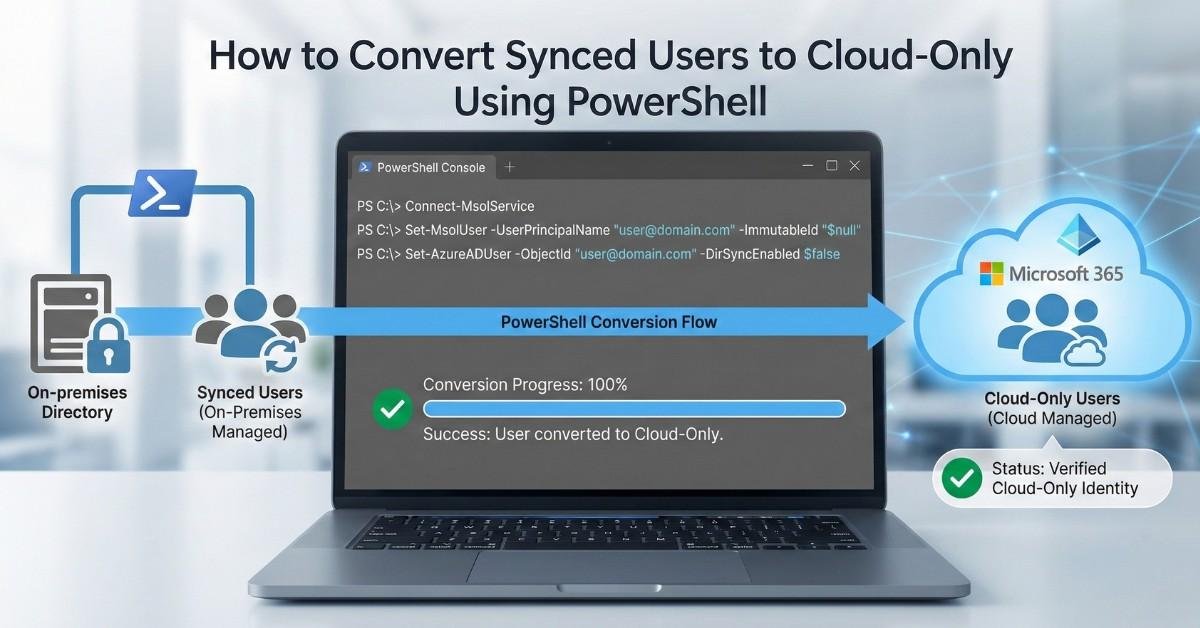
How to Convert Synced Users to Cloud-Only Using PowerShell
To convert synced user to cloud only using PowerShell, organizations must disable Microsoft Entra ID (Azure AD) directory synchronization. Once synchronization is turned off, Microsoft automatically converts all synced identities into cloud-only users while preserving their existing Microsoft 365 data and permissions.
This method is the recommended and supported approach when planning to convert on-prem user to cloud-only after fully retiring on-premises Active Directory.
Introduction
In scenarios where an on-premises AD no longer has any dependencies, organizations may choose to fully embrace the cloud by converting their synchronized users in Microsoft Entra ID (formerly Azure AD) to cloud-only users.
This migration can be seamlessly achieved using the Entra ID Connect synchronization service, ensuring that users retain uninterrupted access to all Microsoft 365 workloads and cloud-based applications.
Step-by-Step Guide to Disabling Microsoft Entra ID Synchronization
Prerequisites
Before you begin, make sure you have:
- Global Administrator or Hybrid Identity Administrator permissions on the tenant.
- The Microsoft Graph PowerShell module installed (this replaces the old AzureAD/MSOnline modules).
- Confirmed that your on-premises AD no longer has dependencies that require synchronization with Microsoft 365, and that all workloads/users have been successfully migrated to the cloud.
The following steps walk you through disabling Entra ID directory synchronization using the current, supported Microsoft Graph PowerShell commands.
Step 1: Install the Microsoft Graph PowerShell Module
Install-Module Microsoft.Graph -Force

Update-Module Microsoft.Graph
Step 2: Connect to Your Microsoft 365 Tenant
Connect using the Microsoft Graph SDK with the correct scopes:
Connect-MgGraph -Scopes "Organization.ReadWrite.All","Directory.ReadWrite.All"You’ll be prompted to sign in with an account that has Global Administrator or Hybrid Identity Administrator rights.
Step 3: Verify Current Synchronization Status
Before making any changes, check whether directory sync is currently enabled:
Get-MgOrganization | Select OnPremisesSyncEnabledIf the value returned is True, directory synchronization is active.
Step 4: Disable Directory Synchronization
Retrieve your organization ID and update the sync setting to false:
$organizationId = (Get-MgOrganization).Id

$params = @{
    OnPremisesSyncEnabled = $false
}

Update-MgOrganization -OrganizationId $organizationId -BodyParameter $params
This is the command that actually stops synchronization between your on-premises AD and Microsoft Entra ID, and it’s what triggers the conversion of synced identities to cloud-only objects.
Step 5: Verify the Change
Run the check again to confirm the update took effect:
Get-MgOrganization | Select OnPremisesSyncEnabledThe value should now return False (in some Graph SDK outputs it may briefly appear blank/null before settling to False).
Step 6: Uninstall Microsoft Entra Connect (Recommended)
If you’re permanently moving to cloud-only identity management, Microsoft recommends removing the sync engine entirely once synchronization is disabled:
- Uninstall Microsoft Entra Connect Sync (formerly Azure AD Connect) from the on-prem server.
- Remove any Microsoft Entra Cloud Sync agents, if you were using those instead.
Step 7: Confirm Synchronized Users Are Now Cloud-Only
Once synchronization is disabled, Microsoft Entra ID automatically converts the previously synced users to cloud-only users. These users retain full access to Microsoft 365 services, including their mailboxes, SharePoint, OneDrive, Teams, applications, and group memberships — nothing needs to be recreated or migrated.
Example: Full PowerShell Walkthrough
Here’s what the full process looks like end-to-end in a live session:
PS C:\Windows\system32> Get-InstalledModule Microsoft.Graph

Version              Name                                Repository           Description
-------              ----                                ----------           -----------
2.33.0               Microsoft.Graph                     PSGallery            Microsoft Graph PowerShell module

PS C:\Windows\system32> Update-Module Microsoft.Graph

Untrusted repository
You are installing the modules from an untrusted repository. If you trust this repository, change its
InstallationPolicy value by running the Set-PSRepository cmdlet. Are you sure you want to install the modules from
'PSGallery'?
[Y] Yes  [A] Yes to All  [N] No  [L] No to All  [S] Suspend  [?] Help (default is "N"): A

PS C:\Windows\system32> Get-InstalledModule Microsoft.Graph

Version              Name                                Repository           Description
-------              ----                                ----------           -----------
2.38.0               Microsoft.Graph                     PSGallery            Microsoft Graph PowerShell module

PS C:\Windows\system32> Connect-MgGraph -Scopes "Organization.ReadWrite.All","Directory.ReadWrite.All"

Welcome to Microsoft Graph!

Connected via delegated access using 14d82eec-204b-4c2f-b7e8-296a70dab67e

PS C:\Windows\system32> Get-MgOrganization | Select OnPremisesSyncEnabled

OnPremisesSyncEnabled
---------------------
True

PS C:\Windows\system32> $organizationId = (Get-MgOrganization).Id

PS C:\Windows\system32> $params = @{
    OnPremisesSyncEnabled = $false
}

PS C:\Windows\system32> Update-MgOrganization -OrganizationId $organizationId -BodyParameter $params

PS C:\Windows\system32> Get-MgOrganization | Select OnPremisesSyncEnabled

OnPremisesSyncEnabled
---------------------
False
Notice that after the update, OnPremisesSyncEnabled returns blank rather than an explicit False right away — this is normal behavior in some Graph SDK outputs and confirms the setting has been cleared.
Important Notes
- After disabling directory synchronization, changes made in on-prem AD will no longer sync to Microsoft 365.
- Synced users become cloud-only users and can be managed directly in Microsoft 365/Entra ID going forward.
- Microsoft states you must wait up to 72 hours before re-enabling synchronization if you change your mind, so treat this as a deliberate, one-way step for planning purposes.
Legacy Method (Deprecated — Do Not Use)
Older guides (including earlier versions of this post) referenced commands like:
Install-Module AzureAD
Install-Module MSOnline

Connect-MsolService

Set-MsolDirSyncEnabled -EnableDirSync $false

(Get-MsolCompanyInformation).DirectorySynchronizationEnabled
These relied on the MSOnline and AzureAD modules, both of which are now deprecated and unsupported by Microsoft. If you still have scripts or documentation referencing Set-MsolDirSyncEnabled, they should be updated to use Update-MgOrganization as shown above.
Conclusion
Converting identities after retiring on-prem AD does not require recreating users or migrating data. By disabling directory synchronization, administrators can convert synced users to cloud-only using PowerShell while ensuring uninterrupted access to Microsoft 365 workloads.
This approach is ideal for organizations looking to convert on-prem users to cloud-only and simplify identity management using Microsoft Entra ID.
If you need any help with your migration or have questions about the process, feel free to reach out. I’m here to assist you with all your Microsoft 365 security and compliance needs.
support@ngcloudsecurity.com
