

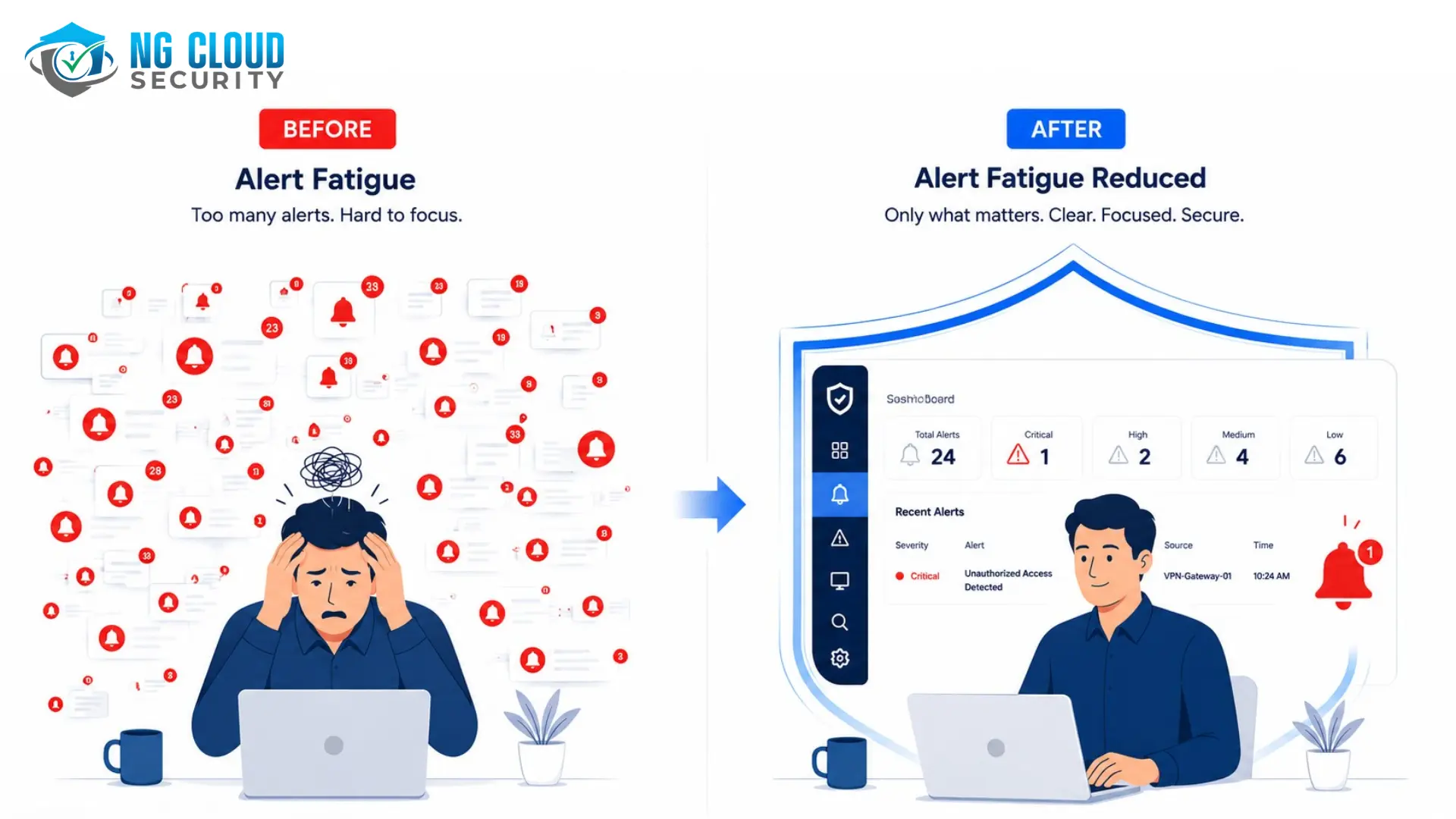
How to Reduce Security Alert Fatigue in Microsoft Defender
Your security team is not missing threats because they are careless. They are missing threats because they are buried.
SOC teams using Microsoft Defender now receive an average of eleven thousand alerts per day according to Forrester research, while the number that actually require investigation is only a fraction of that total. The rest is noise, and that noise has consequences. Sixty percent of security teams admit to ignoring alerts that later turned out to contain critical security indicators. Seventy-six percent cite alert fatigue as their top operational challenge. Seventy-three percent report analyst burnout as a direct result.
Knowing how to reduce security alert fatigue in Microsoft Defender is no longer a nice-to-have skill for security operations teams. It is a business-critical requirement. In this guide, we cover what causes alert fatigue in Microsoft Defender, the tools and techniques available to address it, and how organizations can build a more sustainable, effective security operations model.
What Is Security Alert Fatigue?
Alert fatigue happens when security analysts are exposed to so many alerts that they begin to respond more slowly, make less careful decisions, or stop engaging meaningfully with alerts altogether. It is not a morale problem. It is a system design failure.
In Microsoft Defender environments, alert fatigue typically develops when:
- Detection rules are generating repeated alerts for the same benign activity
- Low-severity and informational alerts are mixed in the same queue as critical incidents
- Related alerts from different Defender workloads appear as separate items instead of a single correlated incident
- Suppression rules have not been configured or have not been updated to reflect current operations
- Automation has not been implemented for known-safe patterns that trigger alerts repeatedly
The result is a queue that grows faster than analysts can clear it. Eighty-eight percent of organizations report that alert volume has increased in the past year, and forty-six percent report increases of more than twenty-five percent. When analysts spend their shifts clearing low-value alerts, the real threats hide in the flood.
The cost of this problem extends beyond missed detections. Manual alert triage costs an estimated three point three billion dollars annually in the United States alone. The average data breach costs four point four four million dollars, and delayed detection driven by alert fatigue is a contributing factor. Analyst turnover in SOC roles runs at approximately twenty-eight percent annually, among the highest of any IT function, and alert volume is consistently cited as a primary driver.
Why Microsoft Defender Environments Generate High Alert Volumes
Microsoft Defender XDR aggregates signals from Defender for Endpoint, Defender for Office 365, Defender for Identity, Defender for Cloud Apps, and Microsoft Sentinel. That breadth of coverage is a strength, but it also means that a single security event can generate alerts across multiple workloads simultaneously.
Without proper configuration, teams face:
- Duplicate alerts from the same underlying event appearing across multiple Defender products
- Informational and low-severity alerts sitting alongside critical incidents in the main queue
- User-reported phishing emails generating individual alerts rather than being consolidated
- Tenant Allow and Block List notifications contributing noise without meaningful investigation value
- Known-safe internal tools and processes triggering Defender for Endpoint detections repeatedly
- Custom detection rules that were built without scope limits and fire too broadly
Roughly eighty-five percent of alerts in typical Microsoft Defender deployments that have not been tuned are false positives or low-value noise. Analysts in those environments spend up to six hours per shift on triage for alerts that do not represent real threats.
What Microsoft Has Built to Address Alert Fatigue
Microsoft has invested significantly in reducing alert fatigue within the Defender platform. Understanding what is available before building custom processes is essential.
Alert Tuning and Built-In Suppression Rules
Microsoft Defender XDR introduced built-in alert tuning rules that went live on February 5, 2026. These rules automatically triage low-severity alerts from known benign activity, keeping them out of the active analyst queue while still running background investigations through Automated Investigation and Response workflows.
The initial release included eighteen built-in tuning rules focused on Microsoft Defender for Office 365, covering user-reported spam, quarantined message requests, and Tenant Allow and Block List notifications. General availability for Defender for Endpoint tuning rules followed in May 2026. Microsoft has committed to expanding coverage across additional Defender XDR workloads over time.
Critically, suppressed alerts do not simply disappear. When an alert is tuned out of the queue, AIR continues running a background investigation. If that investigation detects elevated risk or malicious activity, the alert is automatically reopened with a New status and returned to the analyst queue. This means automation acts as a smart filter, not a gap in coverage.
To access alert tuning in your environment, navigate to Settings in the Microsoft Defender portal, then select Defender XDR, then Alert tuning. Built-in rules are visible and can be disabled individually at any time.
Incident Correlation and Deduplication
Microsoft Defender XDR automatically correlates related alerts into unified incidents using AI-powered logic that maps signals to MITRE ATT&CK attack patterns, asset criticality, and known threat behavior. Instead of seeing fifteen separate alerts from a single phishing campaign, analysts see one incident with all related signals consolidated.
This incident merging is platform-driven. It operates automatically based on Defender’s AI engine. However, teams can influence its effectiveness by improving entity mapping in custom detection rules, keeping suppression rules current to reduce false positives that interfere with correlation, and ensuring alert severity settings accurately reflect the risk level of each detection type.
AI-Powered Incident Prioritization
Microsoft Defender XDR now includes machine learning-driven incident prioritization that scores each incident using threat context, MITRE ATT&CK signals, asset criticality, and signal rarity. Higher-priority incidents surface at the top of the queue automatically, so analysts engage with the most serious threats first rather than working through a chronological list.
This capability was released in January 2026 and is active by default in Microsoft Defender XDR environments. It does not require additional configuration, though the quality of its prioritization improves as your environment builds more telemetry history.
Microsoft Security Copilot and the Phishing Triage Agent
Microsoft Security Copilot introduces AI agents that autonomously triage specific alert categories without requiring analyst involvement. The Phishing Triage Agent, available in Microsoft Defender for Office 365 Plan 2 with Security Copilot, automatically investigates user-reported phishing emails at scale.
The agent analyzes email content, detonates suspicious files and URLs in a sandbox environment, reviews screenshots, queries Microsoft threat intelligence feeds, and runs advanced hunting queries to correlate signals across data sources. It then produces a verdict with transparent reasoning in natural language, either closing the alert if it determines it is not a genuine threat or escalating it with full context if it requires analyst attention.
Real-world impact has been significant. St. Luke’s University Health Network reports saving nearly two hundred hours per month using the Security Alert Triage Agent to handle thousands of false positive phishing alerts automatically. TUV SUD reports analyzing threats sixty to seventy percent faster after deploying Security Copilot. Elanco has reduced response times by up to fifty percent.
Is Alert Fatigue Slowing Down Your Security Team?
NG Cloud Security helps businesses reduce Microsoft Defender alert noise, implement automated triage, and build a more effective security operations model. Talk to our specialists about your environment.
How to Reduce Security Alert Fatigue in Microsoft Defender: Practical Steps
Built-in Microsoft tools provide the foundation. The following steps show how to apply them effectively in a real environment.
Step 1: Audit Your Current Alert Volume Before Tuning Anything
Before suppressing or tuning any alerts, establish a baseline. In the Microsoft Defender portal, review the Incidents and Alerts queue and categorize what you see. Identify which alert types are firing most frequently, which are consistently being closed without action, and which represent genuine threats that required investigation.
This audit tells you where to focus your tuning effort. The goal is not to reduce the number of alerts at any cost. It is to remove repeat low-value detections so that genuine threats remain visible. Suppressing unknown behavior prematurely is how coverage gaps are created.
Step 2: Enable and Review Built-In Alert Tuning Rules
Navigate to Settings, then Defender XDR, then Alert tuning to review Microsoft’s built-in tuning rules. These are active by default from February 2026 for Office 365 workloads and May 2026 for Endpoint. Review each rule to confirm it matches your environment’s expected behavior before leaving it enabled.
You can disable any individual rule that does not fit your operations. For organizations using the Security Copilot Phishing Triage Agent, review the interaction between the built-in Auto-Resolve rules and the agent’s classification workflow, as suppressed alerts are not classified by the agent.
Step 3: Create Custom Alert Tuning Rules for Known-Safe Patterns
For recurring alerts that are not covered by Microsoft’s built-in rules, create custom alert tuning rules in the Defender portal. These rules support conditions based on specific files, processes, scheduled tasks, and other evidence types that trigger alerts.
The most effective approach is to identify the top ten to fifteen alert types in your queue that are consistently closed without action, confirm through investigation that they represent known-safe behavior, and create scoped tuning rules for each one. Scope rules as narrowly as possible, targeting specific device groups, user groups, or file paths rather than suppressing an entire alert category globally. Review and audit custom rules on a quarterly basis.
Step 4: Separate Alert Severity Levels and Adjust Notification Settings
Microsoft Defender for Cloud allows you to configure alert notifications to trigger only for high-severity threats. Informational and low-severity alerts remain visible in the portal for review but do not generate active notifications. This prevents your team from being constantly interrupted by low-priority events while ensuring critical alerts still receive immediate attention.
Review your current notification configuration in Defender for Cloud under Environment Settings, then Email notifications. Set the severity threshold that matches your team’s capacity and your organization’s risk tolerance. High-severity-only notifications are appropriate for most organizations as a starting point.
Step 5: Use Automated Investigation and Response to Handle Routine Triage
Automated Investigation and Response is built into Microsoft Defender XDR and runs automatically for eligible alerts. When a qualifying alert fires, AIR launches a background investigation, collects evidence, and either closes the alert automatically if it determines no threat is present or escalates with a full investigation package if human review is needed.
Review your AIR configuration in the Microsoft Defender portal under Settings, then Endpoints, then Advanced features, then Automated Investigation. Ensure automation is set to the appropriate level for your environment. Organizations with mature Defender deployments typically run AIR in full automation mode, where routine false positives are resolved without any analyst involvement.
Step 6: Implement Custom Detections With Advanced Hunting
Custom detections allow you to build detection rules from Advanced Hunting queries that run at regular intervals and generate alerts only when specific conditions are met. Used correctly, they replace broad default detections with precise, high-fidelity rules that generate fewer but more actionable alerts.
For example, instead of relying on a default process creation alert that fires for any unfamiliar executable, you can write a custom detection that fires only when an unfamiliar executable runs from a specific path on a specific device group that you know represents genuine risk. This approach takes time to build but dramatically reduces noise over the long term.
Step 7: Integrate Microsoft Sentinel for Cross-Platform Correlation
For organizations running Microsoft Sentinel alongside Defender XDR, Sentinel’s automation rules and playbooks provide another layer of alert reduction. Sentinel analytics rules support dynamic thresholds, deduplication logic, and automated playbook responses that can close, enrich, or escalate alerts based on conditions you define.
Processing rules in Azure Monitor can suppress non-actionable alerts before they reach Sentinel, reducing ingestion costs alongside analyst workload. Organizations with fragmented tool environments report spending forty percent more on operational labor than those with consolidated tooling, making integration a financial priority as well as a security one.
How NG Cloud Security Helps Businesses Reduce Alert Fatigue
Many organizations using Microsoft Defender have access to the right tools but lack the time, expertise, or internal capacity to configure them effectively. Alert queues remain noisy, tuning rules go unbuilt, and automation sits unused while analysts continue working through thousands of alerts manually.
NG Cloud Security provides managed SOC services built specifically for Microsoft 365 and Azure environments. Our team works directly with your Defender deployment to:
- Audit your current alert volume and identify the highest-impact sources of noise in your environment
- Configure and maintain alert tuning rules, both Microsoft built-in and custom, tailored to your specific operations
- Implement and manage Automated Investigation and Response to remove manual triage from routine low-value alerts
- Deploy and operate Security Copilot triage capabilities where your licensing supports it
- Build custom detection rules using Advanced Hunting that produce higher-fidelity signals with less noise
- Provide continuous monitoring so your internal team focuses on strategic work rather than alert queues
- Deliver regular reporting on alert trends, false positive rates, mean time to detect, and mean time to respond
Organizations that work with NG Cloud Security typically see a significant reduction in actionable alert volume within the first thirty days, with continued improvement as tuning rules mature and automation handles more routine triage automatically.
Whether you are a growing business without a dedicated security team or an established organization looking to improve your existing Defender deployment, NG Cloud Security provides the expertise and continuous oversight your environment needs.
Benefits of Addressing Alert Fatigue in Microsoft Defender
Organizations that invest in proper alert tuning, automation, and managed oversight typically see measurable improvements across several areas.
- Faster detection of real threats because analysts are no longer buried in low-value noise
- Reduced analyst burnout and improved retention, lowering recruitment and training costs
- Lower mean time to respond as automation handles routine triage instantly rather than waiting for analyst availability
- Stronger compliance posture through consistent alert handling and documented investigation records
- Better return on Microsoft security licensing investment as tools are properly configured and actively used
- Greater confidence in security coverage because tuned environments distinguish genuine threats more reliably
Organizations using AI-assisted triage have cut the breach lifecycle by an average of eighty days and saved significant operational costs compared to those relying entirely on manual investigation.
Frequently Asked Questions
What is alert fatigue in Microsoft Defender and why does it happen?
Alert fatigue in Microsoft Defender occurs when security analysts receive more alerts than they can meaningfully investigate, leading to slower responses, desensitization, and missed threats. It happens because Microsoft Defender XDR aggregates signals from multiple workloads simultaneously, default detection rules generate alerts for both genuine threats and routine benign activity, and without tuning, related signals appear as separate alerts rather than consolidated incidents. The result is queues that grow faster than teams can clear them, with analysts spending most of their time on low-value alerts rather than real threats.
How does Microsoft Defender XDR alert tuning work?
Alert tuning in Microsoft Defender XDR allows administrators to suppress or automatically resolve alerts that match known benign patterns in their environment. Built-in tuning rules went live in February 2026 for Office 365 workloads and became generally available for Endpoint in May 2026. These rules automatically triage low-severity alerts while running background Automated Investigation and Response workflows. If those background investigations detect elevated risk, the alert is automatically reopened and returned to the analyst queue. Custom tuning rules can also be created for environment-specific patterns. Access alert tuning at Settings, then Defender XDR, then Alert tuning in the Microsoft Defender portal.
What percentage of Microsoft Defender alerts are false positives?
In Microsoft Defender environments that have not been tuned, roughly eighty-five percent of alerts are false positives or low-value noise that do not require investigation. Across all SOC environments, Forrester research indicates teams receive an average of eleven thousand alerts per day while only twenty-two per analyst require genuine investigation. These figures vary based on how well the environment has been configured, but they illustrate why alert tuning and automation are essential rather than optional for any organization running Microsoft Defender at scale.
Can Microsoft Security Copilot help reduce alert fatigue?
Yes. Microsoft Security Copilot includes AI agents that autonomously triage specific alert categories without analyst involvement. The Phishing Triage Agent, available with Defender for Office 365 Plan 2 and a Security Copilot license, automatically investigates user-reported phishing emails, analyzes email content, detonates suspicious links in a sandbox, queries threat intelligence feeds, and produces a verdict with transparent reasoning. Alerts that do not represent genuine threats are closed automatically. Real-world customers including St. Luke’s University Health Network report saving nearly two hundred hours per month using this capability. A broader Security Alert Triage Agent covering identity and cloud alerts is currently in preview and expanding.
How long does it take to see results from alert tuning in Microsoft Defender?
Organizations that audit their alert volume, enable Microsoft’s built-in tuning rules, and configure AIR to run in full automation mode typically see meaningful reductions in actionable alert volume within the first two to four weeks. More significant improvements come as custom tuning rules are built for environment-specific false positive patterns, which takes four to eight weeks to implement properly. Sustained improvement is ongoing as detection coverage changes and new tuning rules are added. Organizations working with a managed SOC provider experienced in Microsoft Defender typically reach a stable, well-tuned state faster than those managing tuning internally alongside other responsibilities.
When should a business consider a managed SOC to help with Microsoft Defender alert fatigue?
A business should consider a managed SOC when internal teams are consistently unable to clear alert queues, when response times to genuine threats are increasing, when analysts are showing signs of burnout or leaving, when Microsoft Defender’s built-in tools have not been fully configured due to capacity constraints, or when the organization lacks the specialized expertise to build and maintain effective tuning rules and automation. A managed SOC provider with deep Microsoft Defender expertise can audit the environment, implement proper alert tuning, deploy automation, and provide continuous monitoring so internal teams focus on strategic security work rather than triage queues.
Final Thoughts
Alert fatigue is not a sign that Microsoft Defender is generating too many alerts. It is a sign that the environment has not been tuned to distinguish signal from noise. The tools to address it exist inside the platform. Built-in alert tuning rules, Automated Investigation and Response, AI-powered incident prioritization, and Security Copilot triage agents give organizations the capability to dramatically reduce the number of alerts that reach human analysts.
The challenge for most businesses is not knowing what is possible. It is having the time, expertise, and ongoing capacity to configure, maintain, and improve these tools consistently.
Organizations that address alert fatigue see faster threat detection, lower analyst burnout, better compliance outcomes, and stronger overall security posture. Those that leave it unaddressed face growing queues, missed threats, and a team that is increasingly reactive rather than effective.
Ready to Reduce Alert Fatigue in Your Microsoft Defender Environment?
Talk to our cybersecurity specialists about threat monitoring, Microsoft Defender tuning, alert automation, and managed SOC services tailored to your business.
