

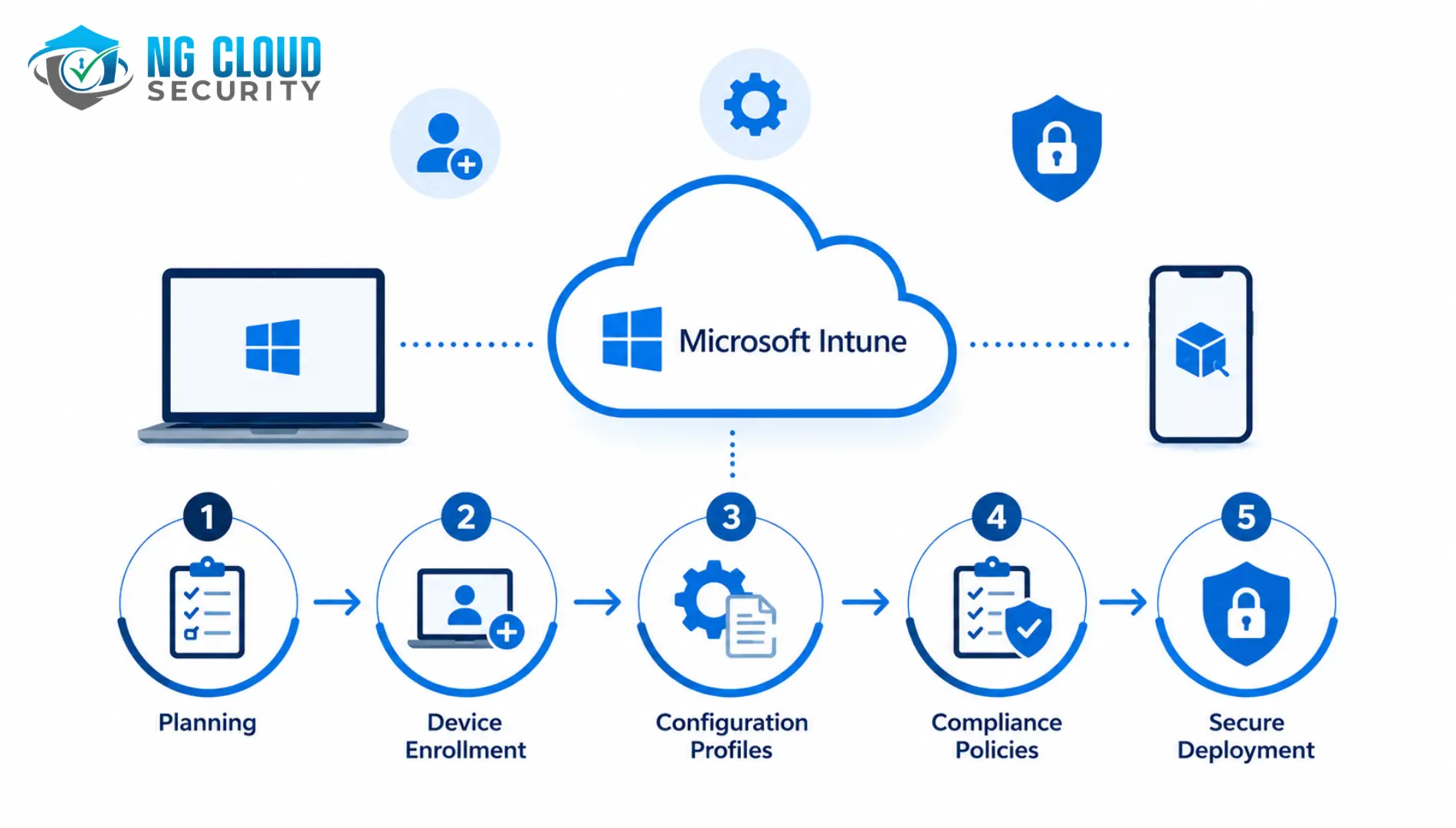
Step-by-Step Guide to Deploying Microsoft Intune Successfully
Microsoft Intune deployment has grown from a mobile device management add-on into the cornerstone of enterprise endpoint security strategy. In 2026, it manages more than 200 million devices worldwide and holds a 37% share of the MDM market — yet a significant number of deployments fail to reach their potential because they are rushed, poorly scoped, or treated as a one-time IT task rather than a structured programme. This guide walks you through every phase of a successful Intune deployment, from pre-project planning through to steady-state governance.
Whether you are deploying Intune for the first time, migrating from a legacy MDM solution, or extending an existing deployment to cover BYOD devices and Microsoft 365 Copilot, the steps in this guide apply. Estimated total deployment time for a mid-market organisation (500–5,000 devices) following this framework: 8 to 14 weeks.
What Is Microsoft Intune and Why Does It Matter in 2026?
Microsoft Intune is a cloud-based Unified Endpoint Management (UEM) platform that enables organisations to manage, secure, and monitor devices and applications from a single administrative console — the Microsoft Intune admin centre. It supports Windows, macOS, iOS, iPadOS, and Android devices, and integrates natively with Microsoft Entra ID (formerly Azure Active Directory), Microsoft Defender for Endpoint, Microsoft Purview, and the broader Microsoft 365 security stack.
Intune serves two primary management models. Mobile Device Management (MDM) gives IT full control over corporate-owned devices — enforcing encryption, managing apps, and wiping devices remotely. Mobile Application Management (MAM) protects corporate data on personal (BYOD) devices without requiring full device enrolment, by wrapping corporate apps like Outlook and Teams with data protection policies.
In the Zero Trust security model that dominates enterprise strategy in 2026, Intune is the enforcement layer for device compliance. Every access decision made by Microsoft Entra Conditional Access depends on the device health signal that Intune provides. Without Intune, Conditional Access cannot distinguish a patched, encrypted corporate device from a compromised personal laptop — and Zero Trust cannot function.
Licensing Note
| Microsoft Intune Plan 1 | Included with Microsoft 365 Business Premium, Microsoft 365 E3, EMS E3, and equivalent plans. |
| Microsoft Intune Plan 2 | Includes all Plan 1 features plus Microsoft Tunnel for Mobile Application Management (MAM) and Firmware Update Management. |
| Microsoft Intune Suite | Includes all Plan 2 features plus Endpoint Privilege Management, Remote Help, and Advanced Analytics. |
| Recommended for Most Organizations | Microsoft Intune Plan 1 is sufficient for most endpoint management and security requirements. |
| Important Note | Verify your Microsoft licensing tier before deployment to ensure the required Intune features are available. |
Before You Begin: Pre-Deployment Planning
The most common reason Intune deployments stall or require expensive rework is inadequate pre-deployment planning. Spending two to three weeks on the activities below before touching the Intune admin centre will save months of remediation work later.
1. Define Your Scope and Use Cases
Document the device types, operating systems, and ownership models (corporate-owned vs BYOD) you will manage. Identify the applications that must be deployed or protected. Map the user populations and their data sensitivity levels. Organisations with developers, executives, and frontline workers have fundamentally different compliance requirements — a single uniform policy will either be too restrictive for productivity or too permissive for security.
2. Review Network Prerequisites
Intune-managed devices must be able to reach specific Microsoft endpoints. Review the IP addresses, port settings, and domain names required for Intune communication. If your organisation uses network proxies or firewalls, confirm that traffic to the required Microsoft URLs is allowed before enrolment begins — blocked network endpoints are among the top five causes of enrolment failures.
3. Decide on MDM Authority
If you are migrating from System Center Configuration Manager (SCCM/ConfigMgr), decide your co-management strategy before deployment. Co-management allows both ConfigMgr and Intune to manage Windows devices simultaneously, with workloads migrated progressively. Choosing the wrong workload split at this stage causes policy conflicts that are difficult to diagnose later.
4. Plan Your Pilot Group
Never deploy Intune organisation-wide in the first wave. Select a pilot group of 25 to 50 devices representing your key device types and user personas. The pilot validates your enrolment process, compliance policies, app deployment, and user communication plan before broad rollout.
| ✔ Action Checklist | Description |
| Document device inventory | Document all device types, operating system versions, and ownership models (corporate-owned and BYOD). |
| Review network requirements | Review and whitelist Microsoft Intune network endpoints in firewall and proxy configurations. |
| Verify licensing | Confirm Microsoft 365 or EMS licensing for all users who will enroll devices. |
| Assess co-management needs | Identify co-management requirements if migrating from SCCM or Microsoft Configuration Manager. |
| Create a pilot group | Select a pilot group of 25–50 devices representing key device types and user roles. |
| Prepare user communications | Develop a communication plan explaining Microsoft Intune, enrollment expectations, and device management changes. |
The Deployment: Eight Steps to a Successful Intune Rollout
Step 1: Set Up Your Intune Environment
Sign in to the Microsoft Intune admin centre at intune.microsoft.com. If you are moving from Office 365, your custom domain is already configured in Microsoft Entra ID — Intune uses the same directory. If this is a greenfield deployment, configure your custom domain name before adding users. Set your MDM authority to Intune (not SCCM) unless you are using co-management.
Configure the Intune Company Portal — the app that users will use to enrol their devices and install managed applications. Customise it with your organisation’s name, logo, support contact information, and colour scheme. A personalised Company Portal dramatically improves user enrolment rates by making the experience feel familiar rather than corporate-generic.
| ✔ Action Checklist | Description |
| Verify tenant configuration | Sign in to Microsoft Intune Admin Center (intune.microsoft.com) and verify the tenant configuration settings. |
| Configure custom domain | Configure and validate your organization’s custom domain name in Microsoft Entra ID. |
| Set MDM authority | Ensure the Mobile Device Management (MDM) authority is set to Microsoft Intune. |
| Customize Company Portal | Configure the Company Portal with your organization’s branding, logo, contact information, and support details. |
| Enable autoenrollment | Enable MDM auto-enrollment in Microsoft Entra ID (Mobility → Microsoft Intune) and set the MDM user scope to All users or a designated pilot group. |
Step 2: Add Users, Groups, and Licences
Users are stored in Microsoft Entra ID. Add users individually or synchronise from on-premises Active Directory using Microsoft Entra Connect. Assign Intune licences to all users who will enrol devices. Without a licence assignment, enrolment will fail silently — a common cause of helpdesk tickets in the first week of deployment.
Create dedicated Entra ID security groups for your Intune deployment: a pilot group, a corporate devices group, a BYOD group, and groups segmented by role (e.g., Executives, Developers, Frontline Workers). Policy assignments, app deployments, and compliance requirements will all be scoped to these groups.
| ✔ Action Checklist | Description |
| Add and synchronize users | Add users directly in Microsoft Entra ID or configure Entra Connect synchronization for on-premises Active Directory integration. |
| Assign Intune licenses | Assign Microsoft Intune licenses to all users included in the deployment scope. |
| Create security groups | Create dedicated security groups for Pilot Users, Corporate Devices, BYOD Devices, and role-based administration. |
| Configure dynamic groups | Use Microsoft Entra ID dynamic membership rules to automatically assign users and devices to appropriate groups. |
| Apply least-privilege access | Assign the minimum required Intune administrator role to each administrator and avoid using Global Administrator privileges for routine Intune management tasks. |
Step 3: Configure Compliance Policies
Compliance policies define the security baseline that devices must meet before they can access organisational resources. They are evaluated by Intune and the result — compliant or non-compliant — is passed to Microsoft Entra Conditional Access to control resource access in real time.
Create a compliance policy for every device platform you will manage: Windows, iOS/iPadOS, Android, and macOS. At minimum, each policy should require a password or PIN, device encryption (BitLocker for Windows, FileVault for macOS), a minimum OS version, and that the device is not jailbroken or rooted.
| Security Level | Compliance Requirements | Recommended Users |
| Level 1 – Basic | Password policy enforcement, device encryption, and minimum operating system version requirements. | All enrolled devices. |
| Level 2 – Standard | Includes Level 1 controls plus BitLocker enforcement, screen lock timeout, and active antivirus protection. | General corporate devices and standard business users. |
| Level 3 – High Security | Includes Level 2 controls plus Microsoft Defender for Endpoint integration, device risk level below Medium, and compliant network location requirements. | Executives, finance teams, administrators, and privileged users. |
Set the non-compliance grace period to a minimum of 1 day rather than immediate — this gives users time to resolve issues before access is blocked, reducing helpdesk calls significantly. Configure automated notification emails that explain what the user must do to become compliant, with clear language and a link to self-service remediation guidance.
| ✔ Action Checklist | Description |
| Create platform-specific compliance policies | Create compliance policies for Windows, iOS/iPadOS, Android, and macOS devices |
| Configure tiered compliance levels | Implement compliance levels based on user roles, security requirements, and data sensitivity classifications. |
| Set a non-compliance grace period | Configure a non-compliance grace period of at least one day to allow users time to remediate issues before access restrictions are applied. |
| Enable automated user notifications | Configure automated non-compliance notification emails that include self-service remediation guidance and support information. |
| Integrate Microsoft Defender for Endpoint | Enable Microsoft Defender for Endpoint integration to incorporate device risk signals into Level 3 compliance policies and Conditional Access decisions. |
Step 4: Configure Conditional Access Policies
Conditional Access policies are created in Microsoft Entra ID — not directly in Intune — but they depend entirely on Intune’s compliance signal. They are the mechanism through which device compliance is enforced: non-compliant devices are blocked from accessing Microsoft 365 apps, SharePoint, Teams, and other corporate resources.
Always deploy Conditional Access policies in Report-Only mode first. Report-Only mode logs what the policy would have done without actually blocking any access. Review the sign-in logs for one to two weeks to identify any legitimate users or devices that would be incorrectly blocked before switching to enforcement mode. Failing to do this is the leading cause of organisation-wide lockouts during Intune deployments.
| Critical Safety Rule: Exclude Break-Glass AccountsAlways exclude at least two break-glass emergency administrator accounts from every Conditional Access policy. These accounts — with strong passwords stored securely offline — ensure you can recover access to your tenant if a Conditional Access misconfiguration locks out all users. Failing to configure break-glass exclusions has caused complete tenant lockouts in production environments. |
| ✔ Action Checklist | Description |
| Configure Conditional Access policies | Create Microsoft Entra ID Conditional Access policies that require compliant devices to access Microsoft 365 applications and services. |
| Deploy policies in Report-Only mode | Configure all new Conditional Access policies in Report-Only mode before enforcing them in production. |
| Review sign-in impact | Monitor Report-Only sign-in logs for 1–2 weeks to identify potential access issues and policy conflicts before enabling enforcement. |
| Exclude emergency accounts | Exclude break-glass emergency administrator accounts from all Conditional Access policies to prevent administrative lockout scenarios. |
| Enforce MFA alongside compliance | Configure Multi-Factor Authentication (MFA) requirements in addition to device compliance policies to strengthen security through layered protection. |
Step 5: Enrol Devices
Device enrolment is the process by which a device registers with Intune and receives its MDM certificate, enabling Intune to deploy policies and apps. Enrolment methods vary by platform and ownership model.
Windows Devices
For corporate-owned Windows devices, Windows Autopilot is the gold standard. IT pre-registers device hardware IDs with Intune. When a new device is unboxed and powered on, it connects to the internet, authenticates to Entra ID, and self-configures — installing all required apps, applying compliance policies, and joining the domain — without any IT involvement. Device setup time drops from approximately 6 hours to under 1 hour. The Enrollment Status Page (ESP) shows users the progress of device setup and prevents use until configuration is complete.
For existing Windows devices already in your organisation, use Entra ID join with MDM auto-enrolment, or the Windows Settings app for manual enrolment.
iOS and iPadOS Devices
For corporate-owned Apple devices, use Apple Business Manager (ABM) integrated with Intune’s Automated Device Enrolment (ADE). This requires an MDM push certificate uploaded to Intune from the Apple Push Notification service. For BYOD iOS devices, users enrol through the Company Portal app.
Android Devices
Android enrolment supports Android Enterprise for corporate devices (fully managed, dedicated, or work profile), and Android Enterprise with a work profile for BYOD. Android Enterprise separates personal and corporate data into distinct profiles, addressing privacy concerns that commonly slow BYOD adoption.
macOS Devices
macOS enrolment uses Platform SSO with the Company Portal. For zero-touch macOS deployment, integrate with Apple Business Manager — similar to iOS ADE.
| ✔ Action Checklist | Description |
| Configure Windows Autopilot | Register device hardware IDs, create Windows Autopilot deployment profiles, and configure the Enrollment Status Page (ESP) for streamlined device provisioning. |
| Upload Apple MDM Push Certificate | Obtain and upload the Apple MDM Push Certificate from the Apple Push Notification Service (APNs) to enable Apple device management in Intune. |
| Integrate Apple Business Manager | Connect Apple Business Manager with Microsoft Intune to support zero-touch enrollment for corporate-owned iOS, iPadOS, and macOS devices. |
| Configure Android Enterprise | Set up Android Enterprise and configure Work Profile enrollment to support Bring Your Own Device (BYOD) scenarios securely. |
| Validate enrollment workflows | Test the complete enrollment process for Windows, macOS, iOS/iPadOS, and Android devices within the pilot group before expanding deployment. |
| Create helpdesk documentation | Develop an enrollment troubleshooting guide for the helpdesk team, covering common enrollment errors, user issues, and remediation steps. |
Step 6: Deploy and Protect Applications
Intune’s app management capabilities divide into two categories: app deployment for managed devices, and app protection policies (MAM) for both managed and unmanaged devices.
For managed devices, deploy a baseline set of apps during enrolment so that devices are productive from first login. Assign required apps to device groups — they install automatically. Assign available apps to user groups — they appear in the Company Portal for self-service installation.
Win32 app deployment is the most powerful method for complex Windows applications. The process requires packaging the application as an .intunewin file using the Microsoft Win32 Content Prep Tool. Always test the silent install command before packaging: msiexec /i application.msi ALLUSERS=1 /qn /norestart. Configure accurate detection rules (registry key or MSI product code) to prevent repeated reinstallation.
App Protection Policies (MAM) protect corporate data in apps like Outlook, Teams, and SharePoint on both enrolled and unenrolled devices. They can prevent copy-paste from corporate to personal apps, require a PIN to open corporate apps, and wipe corporate data from the app without touching personal data on the device. For BYOD scenarios where employees refuse MDM enrolment, MAM plus app-based Conditional Access is the correct architecture in 2026.
| ✔ Action Checklist | Description |
| Define application baselines | Define the standard application set required for each device platform and user role within the organization. |
| Package and validate Win32 applications | Package Win32 applications as .intunewin files and thoroughly test silent installation before uploading them to Intune. |
| Configure detection rules | Create detection rules for every Win32 application to accurately identify installed software and prevent reinstallation loops. |
| Assign applications appropriately | Assign required applications to device groups and make optional applications available to user groups through the Company Portal. |
| Configure App Protection Policies | Create App Protection Policies for Microsoft Outlook, Teams, SharePoint, and OneDrive across all supported platforms. |
| Protect BYOD users | Deploy App Protection Policies to BYOD users who are not enrolled in Mobile Device Management (MDM) to secure corporate data without full device management. |
Step 7: Configure Device Configuration Profiles
Configuration profiles push specific settings to managed devices — Wi-Fi credentials, VPN configurations, email settings, certificate deployment, Windows Update rings, and security baselines. They are the mechanism through which Intune standardises device configuration across your fleet.
Use Microsoft’s Security Baseline profiles as your starting point for Windows devices. These are pre-configured templates aligned with Microsoft’s recommended security settings, updated regularly to reflect the current threat landscape. Review each setting in the baseline against your organisation’s requirements — some settings may conflict with specific business applications.
A critical operational rule: never create two configuration profiles that configure the same setting category. Overlapping profiles (e.g., two password policies for the same device group) cause policy conflicts that are difficult to diagnose and may result in neither policy applying correctly.
| ✔ Action Checklist | Description |
| Apply Microsoft Security Baselines | Deploy Microsoft Security Baseline profiles to Windows devices as the foundation for secure device configuration. |
| Configure Windows Update Rings | Create Windows Update rings to control patch deployment schedules, testing phases, and update rollout timing. |
| Deploy connectivity profiles | Configure and deploy Wi-Fi, VPN, and certificate profiles before large-scale device enrollment to ensure seamless connectivity. |
| Review profile conflicts | Audit all configuration profiles to verify that no overlapping settings exist across multiple profiles, preventing policy conflicts. |
| Use Intune Device Filters | Leverage Intune device filters to target configuration profiles precisely and avoid broad assignments when more granular targeting is available. |
Step 8: Monitor, Report, and Maintain
An Intune deployment that is not actively monitored will drift. Devices fall out of compliance as OS updates lag. New apps introduce policy conflicts. Users find workarounds for restrictions that impede productivity. The Intune admin centre provides a comprehensive set of reports and dashboards — but only if someone is looking at them.
Establish a monthly review cadence covering: device compliance rate by platform, non-compliant device trends, failed app deployments, enrolment failures, and policy conflict reports. For organisations managing more than 1,000 devices, use Intune’s integration with Microsoft Endpoint Analytics to proactively identify devices with poor performance, frequent crashes, or restart issues before users report problems.
| Key Metric: IT Ticket VolumeOrganisations that complete a structured Intune deployment including Windows Autopilot, self-service app deployment, and automated compliance remediation typically see a 60% reduction in IT helpdesk tickets related to device setup and access issues within 90 days of full deployment. Track this metric to demonstrate ROI to leadership. |
| ✔ Action Checklist | Description |
| Review compliance and device health reports | Configure Intune compliance and device health reporting and review the results on a monthly schedule. |
| Enable Endpoint Analytics | Activate Endpoint Analytics to proactively monitor device performance, startup times, application reliability, and user experience |
| Configure automated compliance alerts | Set up automated notifications and alerts when device compliance rates fall below the organization’s defined threshold. |
| Monitor application deployment success | Review application deployment success and failure rates weekly during the first month after rollout and monthly thereafter. |
| Perform regular Intune audits | Conduct a comprehensive Intune configuration audit every six months to identify policy sprawl, redundant settings, and security gaps. |
| Maintain Windows Autopilot records | Keep Windows Autopilot hardware hash registrations up to date as devices are replaced, refreshed, or retired. |
Microsoft Intune Competitors: A Complete Comparison (2026)
Microsoft Intune holds a 37% share of the MDM/UEM market in 2026, but it is not the right solution for every organisation. The following comparison covers the six most significant competitors, benchmarked against Intune across key decision criteria.
| Platform | Best For | Pricing | OS Support | Key Strength | vs Intune |
| Microsoft Intune | Microsoft 365 orgs | Included in M365 E3 | Win, macOS, iOS, Android | M365 native integration | Baseline for comparison |
| Jamf Pro | Apple-first orgs | ~$7–15/device/mo | macOS, iOS, iPadOS only | Apple ecosystem depth | Superior for Mac fleets; no Windows/Android |
| Omnissa Workspace ONE | Large cross-platform enterprise | Custom/enterprise pricing | Win, macOS, iOS, Android | Digital workspace unification | More complex; higher cost than Intune |
| IBM MaaS360 | Regulated industries (finance, govt) | Custom pricing | Win, macOS, iOS, Android | Watson AI threat insights | Strong AI analytics; less M365 integration |
| ManageEngine Endpoint Central | SMB / cost-conscious IT | From ~$795/50 devices/yr | Win, macOS, Linux, iOS, Android | Linux support + on-prem option | On-prem option; weaker cloud-native story |
| NinjaOne | MSPs and mid-market IT teams | From ~$3/device/mo | Win, macOS, Linux | RMM + MDM in one platform | Strong RMM; MDM less mature than Intune |
| JumpCloud | Cloud-native, mixed-OS orgs | Free up to 10 devices; ~$9/user/mo | Win, macOS, Linux, iOS, Android | Directory + MDM unified | Strong identity layer; smaller ecosystem |
Jamf Pro — The Apple Ecosystem Gold Standard
Jamf Pro manages more than 30 million Apple devices for over 71,000 organisations worldwide. For any organisation where Apple hardware — Mac, iPhone, iPad — is the primary fleet, Jamf Pro is not a debate. Its Extension Attributes for custom data collection, Smart Groups with automatic dynamic membership updates, and Self Service internal app portal provide capabilities that Intune’s Apple management cannot match.
The constraint is absolute: Jamf Pro does not manage Windows or Android devices. Organisations with mixed fleets must run Jamf Pro alongside Intune — increasing cost and administrative complexity. For Microsoft 365-centric organisations with predominantly Windows fleets, Intune’s Apple management is sufficient.
Omnissa Workspace ONE (formerly VMware Workspace ONE)
Workspace ONE is the strongest cross-platform enterprise alternative to Intune, offering a unified digital workspace that combines device management, application delivery, and identity-aware access control. It is particularly strong in environments with complex network architectures and diverse device fleets including ruggedised hardware.
However, in 2026, Workspace ONE’s support reputation has weakened following the VMware-to-Broadcom transition, with multiple enterprise customers citing reduced support responsiveness. For organisations already invested in the Microsoft 365 stack, Intune’s cost advantage — included in existing M365 licences — is difficult for Workspace ONE to overcome.
IBM MaaS360
IBM MaaS360 differentiates through its Watson AI capabilities, which provide risk-based device management and predictive threat insights that go beyond Intune’s compliance-focused model. It is the preferred choice in highly regulated industries — federal government, defence contractors, and financial services — where IBM’s compliance certifications and AI-driven analytics justify the premium pricing.
ManageEngine Endpoint Central
ManageEngine Endpoint Central is the most cost-effective alternative for SMB organisations and enterprises with on-premises requirements. Its support for Linux endpoint management — a gap in Intune — and its lower per-device cost make it attractive for IT-centric organisations that do not need deep Microsoft 365 integration. It also includes patch management, remote desktop, and vulnerability assessment in a single platform.
NinjaOne
NinjaOne combines Remote Monitoring and Management (RMM) with MDM in a single platform, making it particularly popular with Managed Service Providers (MSPs) and mid-market IT teams managing client fleets. Its MDM capabilities are less mature than Intune’s for enterprise compliance and Zero Trust scenarios, but its RMM integration provides operational visibility that Intune does not offer natively.
When Intune Wins — and When It Doesn’t
| Choose Intune When:Your organisation is already on Microsoft 365 E3, E5, or Business Premium (Intune is included — zero additional cost).Your primary fleet is Windows devices, with secondary iOS and Android management needs.You are building a Zero Trust architecture on the Microsoft stack (Entra ID, Defender, Purview).You want native integration with Microsoft 365 Copilot, Defender for Endpoint, and Microsoft Purview. |
| Consider Alternatives When:Your fleet is predominantly Apple hardware — evaluate Jamf Pro.You need Linux endpoint management — evaluate ManageEngine Endpoint Central.You are an MSP managing multiple client tenants — evaluate NinjaOne.You need advanced AI-driven threat analytics in a regulated industry — evaluate IBM MaaS360. |
Conclusion: Intune as the Foundation of Your Zero Trust Endpoint Strategy
A successful Microsoft Intune deployment is not measured by the number of policies created or devices enrolled. It is measured by whether the organisation has achieved its endpoint security objectives: every managed device is compliant, every access decision is informed by device health, every corporate app on a personal device is protected, and every new device can be provisioned without IT touching the hardware.
The eight steps in this guide — environment setup, user and group configuration, compliance policies, Conditional Access, device enrolment, app deployment, configuration profiles, and monitoring — represent a proven deployment sequence. The steps are sequential because they have dependencies: Conditional Access cannot enforce device compliance without compliance policies, and compliance policies cannot evaluate devices that are not enrolled.
Microsoft Intune’s inclusion in Microsoft 365 E3 and Business Premium makes it the most cost-effective enterprise endpoint management platform available for organisations already on the Microsoft stack. But cost advantage alone does not produce a successful deployment. The organisations that get the most from Intune treat it as what it is: the enforcement layer of a Zero Trust architecture, requiring the same programme discipline, stakeholder alignment, and ongoing governance as any strategic security initiative.
Key Takeaways — Quick Reference
- Complete pre-deployment planning (scope, network, groups, pilot) before touching the admin centre
- Enable MDM auto-enrolment in Entra ID so devices join Intune automatically on Entra join.
- Create tiered compliance policies by role — not a single blanket policy for all devices.
- Deploy Conditional Access in Report-Only mode first; review logs before enabling enforcement.
- Always exclude break-glass admin accounts from Conditional Access policies.6. Use Windows Autopilot for zero-touch device provisioning — setup time drops from
- Use Windows Autopilot for zero-touch device provisioning — setup time drops from 6 hours to under 1 hour
- Use App Protection Policies (MAM) for BYOD scenarios where full MDM enrolment is not feasible.
- Never create two configuration profiles that configure the same setting for the same device group.
- Establish a monthly monitoring cadence; track compliance rates, app failures, and enrolment errors
- Intune wins on cost and M365 integration; Jamf Pro wins on Apple; ManageEngine wins on Linux and on-prem
Frequently Asked Questions about Microsoft Intune Deployment
What is the difference between MDM and MAM in Microsoft Intune?
MDM (Mobile Device Management) gives IT full control over a managed device — enforcing encryption, deploying apps, and wiping the device remotely. It is appropriate for corporate-owned devices. MAM (Mobile Application Management) protects corporate data within specific apps (Outlook, Teams, SharePoint) on personal devices without requiring full device enrolment. For BYOD scenarios in 2026, MAM plus app-based Conditional Access is the recommended approach.
How long does a Microsoft Intune deployment take?
A mid-market organisation (500–5,000 devices) following a structured deployment process should plan for 8 to 14 weeks from project kick-off to full deployment. This includes 2–3 weeks of pre-deployment planning, 2 weeks of pilot testing, and 4–8 weeks of phased rollout. Organisations that skip the pilot phase typically spend more time on post-deployment remediation than the pilot would have taken.
Is Microsoft Intune included in Microsoft 365 licences?
Microsoft Intune Plan 1 is included in Microsoft 365 Business Premium, E3, E5, EMS E3, and EMS E5. For organisations already on these licences, enabling Intune has no additional per-device cost — making it the most cost-effective MDM option for Microsoft 365 environments. Intune Plan 2 and the Intune Suite require additional licensing.
What is Windows Autopilot and do I need it?
Windows Autopilot is a zero-touch device provisioning service that allows new Windows devices to self-configure when powered on and connected to the internet, without any IT involvement. Device hardware IDs are pre-registered with Intune, and all required apps, policies, and configurations are applied automatically. For organisations deploying more than 20 new Windows devices per year, Autopilot provides a significant reduction in IT labour and device setup time.
How does Microsoft Intune compare to Jamf Pro?
Jamf Pro is the superior choice for organisations with predominantly Apple device fleets (Mac, iPhone, iPad). It offers deeper Apple-specific management capabilities, better zero-touch provisioning for Apple devices, and a more mature feature set for macOS management. However, Jamf Pro does not manage Windows or Android devices. Intune is the better choice for mixed-OS fleets, organisations on Microsoft 365, and those building a Zero Trust architecture on the Microsoft stack.
What is the best MDM solution for organisations in India?
For Indian enterprises on Microsoft 365, Microsoft Intune is typically the most practical choice — it is included in existing M365 licences, supports compliance with DPDP Act 2023 requirements through device health attestation and app protection policies, and integrates with Microsoft Purview for data governance. Organisations with predominantly Apple hardware should evaluate Jamf Pro. SMBs with tighter budgets should evaluate ManageEngine Endpoint Central, which has strong India-region support through Zoho’s local presence.
Deploy Microsoft Intune with Confidence
From device enrollment and compliance policies to Zero Trust security and application management, NG Cloud Security helps organizations implement Microsoft Intune securely, efficiently, and at scale.
