

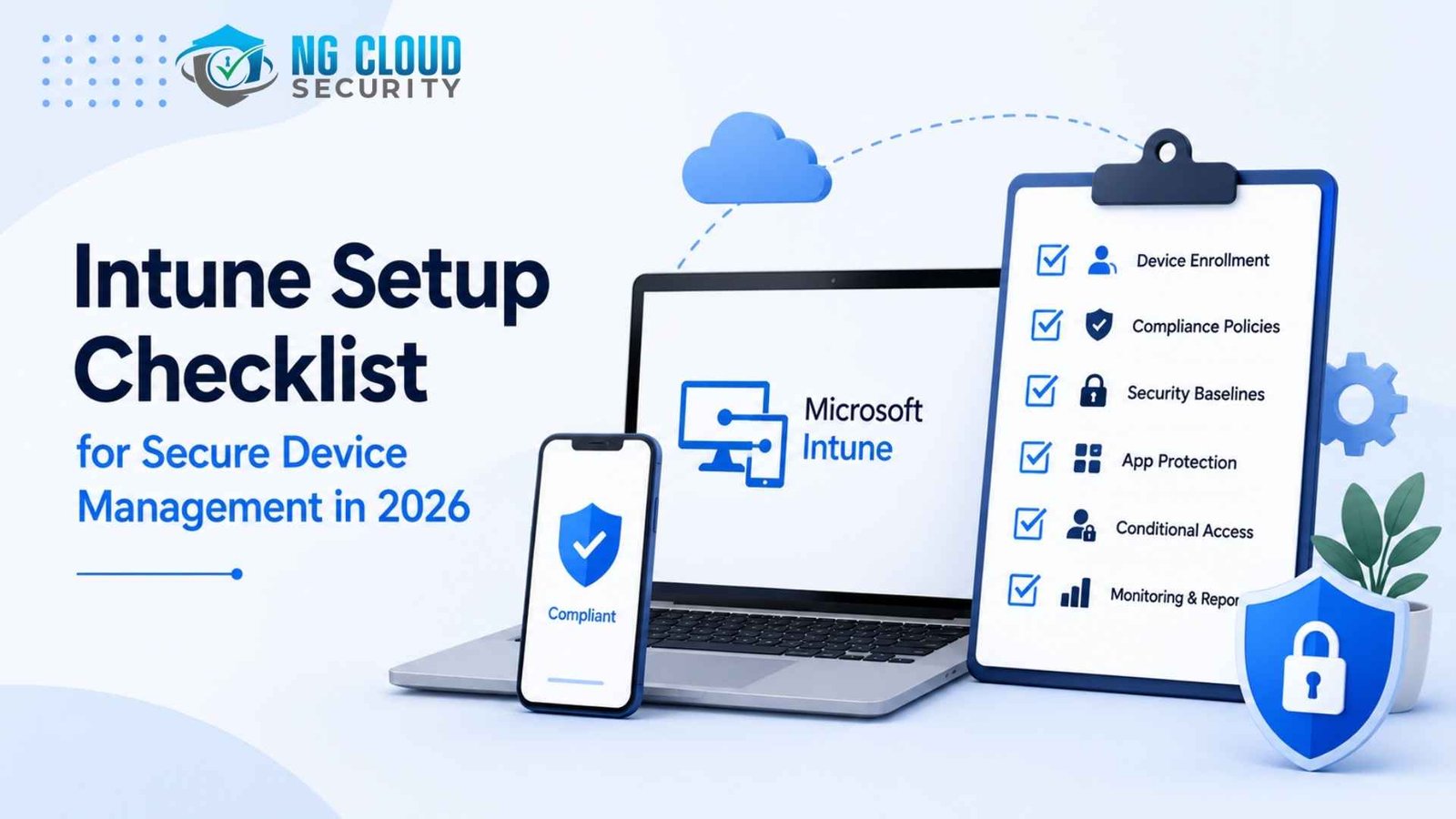
Intune Setup Checklist for Secure Device Management in 2026
If a device connects to your corporate resources without Intune enrollment or compliance verification, it is already a bigger risk than most IT teams assume. That is not speculation. Microsoft’s own research found that eighty to ninety per cent of successful ransomware attacks originate from unmanaged devices.
Microsoft Intune has grown from a mobile device management add-on into the enforcement layer of Zero Trust security. In 2026, it manages more than two hundred million devices worldwide and holds roughly thirty seven percent of the MDM market. Yet a significant share of Intune deployments never reach their potential, because they are rushed, poorly scoped, or treated as a one-time setup task instead of a structured, ongoing program.
This guide is a complete Intune setup checklist for secure device management, covering enrollment strategy, compliance policies, Conditional Access, security baselines, app protection, admin governance, and monitoring — plus the most common setup mistakes and how NG Cloud Security helps IT teams get it right the first time.
What Is Microsoft Intune Setup?
Microsoft Intune is a cloud-based Unified Endpoint Management (UEM) platform used to manage, secure, and monitor devices and applications across Windows, macOS, iOS, iPadOS, and Android from a single admin console. Intune setup is the structured process of configuring enrollment, compliance policies, security baselines, Conditional Access integration, and app protection so that every device accessing corporate resources meets a defined security bar before it is trusted.
Intune supports two management models that a secure setup must account for. Mobile Device Management (MDM) gives IT full control over corporate-owned devices — enforcing encryption, deploying apps, and enabling remote wipe. Mobile Application Management (MAM) protects corporate data inside apps like Outlook and Teams on personal devices, without requiring full enrollment. Getting this distinction right early is one of the most consequential decisions in the entire setup.
Why Secure Intune Setup Matters More in 2026
- Unmanaged devices remain the top ransomware entry point: Microsoft’s research attributes eighty to ninety per cent of successful ransomware attacks to unmanaged devices, and 54% of security professionals report that more than a fifth of their organization’s endpoints are unmanaged.
- BYOD has become the default, not the exception: Ninety-two per cent of remote workers report using personal tablets or smartphones for work tasks, and sixty-two per cent of cybersecurity professionals cite data loss and leakage as their top BYOD-related concern.
- Zero Trust depends entirely on the device signal: Every Conditional Access decision relies on the device health signal Intune provides. Without a properly configured Intune setup, Conditional Access cannot distinguish a patched, encrypted corporate laptop from a compromised personal device.
- Intune Suite licensing is changing in July 2026: Suite capabilities are being redistributed across Microsoft 365 license tiers — E3 gains Plan 2, Remote Help, and Advanced Analytics, while E5 and E7 add Endpoint Privilege Management, Cloud PKI, and Enterprise Application Management. Teams that have not reviewed their tier against this change risk losing access to capabilities they assumed they already had.
- The Secure Boot 2023 certificate deadline lands in June 2026: Organizations need Intune or Windows Autopatch reporting to identify which devices are ready, which need firmware remediation, and which are stale or unknown before the deadline arrives.
- Copilot deployment raises the stakes on device trust: As Microsoft 365 Copilot becomes standard across organizations, an unmanaged or non-compliant device with access to Copilot-surfaced content becomes a much larger exposure than before.
Pre-Setup Planning: What to Confirm Before Touching the Admin Centre
The most common reason Intune deployments stall or require expensive rework is inadequate planning before configuration begins. Spending one to two weeks on the items below saves months of remediation later.
- Confirm Intune licensing for every user population. Plan 1 is included with Business Premium, E3, E5, and F1/F3 (limited); Suite capabilities are shifting across tiers starting July 2026.
- Document device types, operating systems, and ownership models — corporate-owned versus BYOD — for every population you will manage.
- Map user populations to data sensitivity levels, since admin and executive devices typically warrant stricter policy than standard staff.
- Decide your enrollment method per platform: Autopilot for Windows, Automated Device Enrollment for iOS/macOS, Android Enterprise for Android.
- Identify which applications must be deployed versus protected through app-level policy only.
- Set a realistic deployment timeline. A mid-market organization managing 500–5,000 devices typically need eight to fourteen weeks from planning through steady-state governance.
Step 1: Enrollment Strategy and Scope Definition
- Choose MDM, MAM, or both, deliberately: If you manage the device (corporate-owned, fully enrolled), use device compliance policies. If you do not manage the device (BYOD, personal), use App Protection Policies instead of forcing enrollment. For high-security roles such as admins or executives, use both layers together.
- Configure enrollment restrictions: Specify which device platforms, operating system versions, and ownership types are permitted to enroll. Devices outside these restrictions should be blocked from enrolling, not just flagged.
- Set up platform-specific enrollment: Use Windows Autopilot for zero-touch provisioning of corporate Windows devices, Apple Automated Device Enrollment for supervised iOS/macOS devices, and Android Enterprise for corporate or BYOD Android fleets.
- Avoid forcing MDM enrollment on BYOD devices: Users resist enrolling personal devices, and rightly so. For BYOD scenarios, MAM plus app-based Conditional Access is the correct architecture, not full device management.
Step 2: Compliance Policy Configuration
- Start narrow, not comprehensive: A policy with twenty checks creates twenty ways for a device to fail, and a flood of avoidable help desk tickets. Begin with the handful of checks that map to real risk: encryption, OS version, password, and threat level.
- Enforce disk encryption: Require BitLocker on Windows and FileVault on macOS as a non-negotiable baseline for every managed device.
- Set a minimum OS version: Block devices running operating system versions with known unpatched vulnerabilities from being marked compliant.
- Connect Microsoft Defender for Endpoint’s threat level signal: This links your compliance policy to real-time risk scoring, so a device Defender flags as high-risk is automatically marked non-compliant. Set the threshold to Medium-or-below for standard users and Low for admin devices.
- Use report-only mode before enforcing: Roll out new compliance requirements in report-only mode first so you can see the impact without locking anyone out, then move to enforcement once the logs look clean.
- Define escalation paths for non-compliance: Configure a grace period, then a user notification, before moving to a full Conditional Access block — sudden lockouts with no warning generate unnecessary support volume and user frustration.
Step 3: Conditional Access Integration
- Require device compliance as a grant condition: A compliance policy without a corresponding Conditional Access policy produces a label, not enforcement. Confirm at least one Conditional Access policy requires compliance for access to corporate resources.
- Protect privileged roles and admin portals separately: Create dedicated Conditional Access policies for the Intune admin centre, Microsoft Entra, and related admin endpoints requiring phishing-resistant authentication and a compliant device.
- Move away from SMS-based MFA for admins: SMS-based MFA is phishable and still common on admin accounts. Require phishing-resistant methods such as Microsoft Authenticator or FIDO2 security keys instead.
- Maintain break-glass accounts correctly: At least two cloud-only emergency access accounts should exist, be excluded from all Conditional Access policies, and have monitored sign-in alerting configured.
- Roll new policies out in report-only mode first: Exactly as with compliance policies, test Conditional Access changes in report-only mode to catch unintended lockouts before enforcement.
Not Confident Your Intune and Conditional Access Setup Is Actually Enforcing Anything?NG Cloud Security reviews and configures Intune enrollment, compliance policies, and Conditional Access integration for organisations of every size. We find the gaps between what looks configured and what is actually enforced
Step 4: Configuration Profiles and Security Baselines
- Start with Microsoft’s Security Baseline profiles: These pre-configured templates align with Microsoft’s recommended security settings and are updated regularly to reflect the current threat landscape — use them as your starting point rather than building settings from scratch.
- Deploy configuration profiles by device role: Push Wi-Fi credentials, VPN configuration, email settings, and certificate deployment through profiles tailored to how each device population is actually used, not a single blanket profile.
- Standardize Windows Update rings: Group devices into update rings so patches roll out in controlled waves rather than all at once, reducing the risk of a bad update disrupting the entire fleet.
- Use kiosk or multi-user profiles for shared devices: For shared or kiosk-style hardware, configure automatic sign-out and profile cleanup so one user’s session and data never bleed into the next.
Step 5: App Protection Policies for BYOD
- Protect corporate data inside apps, not the whole device: App Protection Policies (MAM) safeguard corporate data in apps like Outlook, Teams, and SharePoint on both enrolled and unenrolled devices, without touching personal data.
- Block copy-paste from corporate to personal apps: Prevent sensitive information from being copied out of a managed app into an unmanaged personal app.
- Require a PIN to open corporate apps: Add an authentication layer at the app level, independent of whatever lock screen the personal device itself uses.
- Enable selective wipe: Configure the ability to remove corporate data from a protected app — on an offboarded employee’s personal phone, for example — without wiping personal photos, messages, or apps.
Step 6: Admin Roles, Governance, and Monitoring
- Apply least-privilege using built-in roles: Use Intune’s built-in role definitions — Help Desk Operator, Application Manager, Endpoint Security Manager, Read Only Operator — instead of defaulting new admins to broad access.
- Implement scoped administration: Use scope groups and scope tags so admins can only affect devices within their assigned business unit, region, or platform.
- Adopt time-bound privilege elevation: Use Microsoft Entra Privileged Identity Management (PIM) for admin roles so elevated access is temporary and requires reauthentication, not standing and permanent.
- Enable Multi Admin Approval for high-impact changes: Require a second approval for actions like Intune RBAC role management, bulk device wipe, and script deployment, to contain the impact of a single compromised or careless admin account.
- Monitor with Secure Score and Security Initiatives: Use Microsoft Secure Score as a baseline benchmark and the Security Initiatives feature in Defender to track progress against structured frameworks like Zero Trust and the CIS Microsoft 365 Benchmark.
- Review admin activity logs regularly: Attackers have been observed abusing MDM platforms to issue bulk remote-wipe commands. Regularly review Intune admin activity logs for unexpected device-management changes.
Tools Used for a Secure Intune Setup
- Microsoft Intune admin centre (intune.microsoft.com): The primary console for enrollment, compliance policies, configuration profiles, and app protection policies.
- Microsoft Entra admin centre (entra.microsoft.com): Conditional Access policy configuration, role assignments, and Privileged Identity Management.
- Microsoft Defender portal (security.microsoft.com): Secure Score, device risk signals, and the Defender for Endpoint connector that feeds compliance policy threat-level checks.
- Windows Autopatch: Automated update ring management and Secure Boot 2023 certificate readiness reporting at the device level.
- Microsoft Graph PowerShell and Graph Security API: Bulk reporting and automation for enrollment status, compliance state, and policy assignment across large device fleets.
- Security Initiatives (Microsoft Defender): Tracks configuration progress against structured frameworks including Zero Trust and the CIS Microsoft 365 Benchmark, providing more context than raw Secure Score alone.
The Most Common Intune Setup Mistakes
Across Intune deployments of every size, the same setup mistakes appear repeatedly — and they are rarely obvious until an audit or an incident exposes them.
- Compliance policies loaded with twenty-plus checks, generating a flood of help desk tickets instead of meaningful risk reduction
- Conditional Access policies left in report-only mode indefinitely and never moved to enforcement
- Compliance policies configured but no Conditional Access policy actually requiring that compliance state — enforcement in name only
- Admin roles defaulted to Global Administrator during early deployment and never cleaned up afterwards
- SMS-based MFA still protecting admin and break-glass accounts, despite being easily phished
- Forcing full MDM enrollment on personal BYOD devices, driving user resistance and shadow IT workarounds
- No emergency access accounts configured, or break-glass accounts accidentally subject to the same Conditional Access policies as everyone else
- Windows Autopilot or platform enrollment never configured, leaving devices manually provisioned and inconsistently secured
How NG Cloud Security Helps with Intune Setup and Device Management
Most IT teams understand what Intune should do but do not have the bandwidth to configure every layer correctly while running daily operations. NG Cloud Security provides structured Intune setup and device management services covering every domain in this guide.
- A scoping and enrollment strategy tailored to your actual device mix and ownership models
- Compliance policy design that starts narrow and expands deliberately, avoiding the help-desk-overload trap
- Conditional Access configuration and testing in report-only mode before enforcement, so nothing breaks unexpectedly
- Security baseline and configuration profile deployment aligned to Microsoft’s current recommended settings
- App Protection Policy design for BYOD populations that refuse full enrollment
- RBAC, scope tag, and PIM configuration to eliminate standing Global Administrator access
- Ongoing monitoring and Secure Score tracking after go-live, so your Intune environment stays configured correctly as it grows
How Often Should You Review Your Intune Setup?
- Review compliance policies and Conditional Access coverage quarterly to catch configuration drift and newly onboarded device types.
- Conduct a full Intune configuration review annually at minimum, aligned with your broader Microsoft 365 security review cycle.
- Trigger an immediate review after a security incident, a merger or acquisition, a major device refresh, or Copilot deployment.
- Reassess licensing and Suite capability mapping ahead of the July 2026 Intune Suite licensing changes to confirm you retain the features you depend on.
Benefits of a Properly Configured Intune Setup
- Closes the unmanaged-device gap responsible for the large majority of successful ransomware attacks
- Gives Conditional Access an accurate device-health signal, which is the foundation Zero Trust depends on
- Reduces help desk volume by avoiding over-broad compliance policies that fail devices unnecessarily
- Enables secure BYOD adoption without forcing personal-device enrollment
- Shrinks the standing-privilege attack surface through RBAC, scope tags, and PIM
- Provides a measurable Secure Score and Security Initiatives baseline to track improvement over time
Frequently Asked Questions
What does an Intune setup checklist include?
A complete Intune setup checklist covers enrollment strategy and scope definition, compliance policy configuration, Conditional Access integration, configuration profiles and security baselines, App Protection Policies for BYOD devices, and admin role governance including RBAC, scope tags, and Privileged Identity Management. A thorough checklist also includes ongoing monitoring through Secure Score and Security Initiatives, since Intune setup is a continuous program rather than a one-time task.
How long does an Intune deployment take?
A mid-market organisation managing between 500 and 5,000 devices typically needs eight to fourteen weeks from initial planning through steady-state governance, following a structured framework. Smaller organisations with simpler device fleets can move faster, while enterprises with complex BYOD populations, legacy MDM migrations, or multiple compliance frameworks often need longer.
What is the difference between Intune MDM and MAM?
Mobile Device Management (MDM) gives IT full control over a corporate-owned, fully enrolled device — enforcing encryption, deploying apps, and enabling remote wipe of the entire device. Mobile Application Management (MAM), also called App Protection Policies, protects corporate data inside specific apps like Outlook and Teams on personal devices, without enrolling or controlling the rest of the device. BYOD scenarios where employees will not enrol personally owned hardware should use MAM rather than forcing MDM.
What compliance policies should Intune enforce first?
Start narrow rather than comprehensive: disk encryption, a minimum supported OS version, a baseline password requirement, and a threat-level check connected to Microsoft Defender for Endpoint. A policy with too many checks creates more ways for legitimate devices to fail and generates unnecessary help desk volume without meaningfully improving security. Add further checks only once the baseline is enforced cleanly.
How does Conditional Access work with Intune?
Intune’s compliance policies determine whether a device is healthy — checking encryption, OS version, and threat signals. Conditional Access then uses that compliance state as a condition for granting or blocking access to corporate resources. Without a Conditional Access policy that actually requires the compliant-device grant control, a compliance policy only produces a label with no enforcement behind it.
What are the most common Intune setup mistakes?
The most common mistakes are Conditional Access policies left permanently in report-only mode, compliance policies configured but never tied to an enforcing Conditional Access rule, admin accounts left at Global Administrator instead of scoped roles, SMS-based MFA still protecting privileged accounts, and forcing full device enrollment onto personal BYOD hardware instead of using App Protection Policies.
Do I need Intune if I already use Conditional Access?
Yes. Conditional Access is a policy engine that makes access decisions, but it needs a device-health signal to act on. Intune is what generates that signal by defining and evaluating device compliance. Without Intune, Conditional Access cannot distinguish a properly patched and encrypted corporate device from a compromised or unmanaged one, which undermines the entire Zero Trust model.
Final Thoughts
An Intune setup is not something you configure once and walk away from. It is the enforcement layer that every Conditional Access decision in your organisation depends on, and it needs the same ongoing attention as any other critical security control.
Organisations that treat Intune setup as a structured program — narrow compliance policies enforced properly, Conditional Access actually requiring compliance, admin access scoped and time-bound — close the unmanaged-device gap before it becomes a ransomware headline. Whether you are deploying Intune for the first time or hardening an existing rollout, the six-step framework in this guide gives you the structure to do it right.
The organisations that get device management right are not the ones with the most policies. They are the ones whose policies are actually enforced.
Ready to Secure Your Device Management with Intune? Talk to our device management specialists about Intune deployment, compliance policy design, Conditional Access integration, and ongoing endpoint security tailored to your organization
