

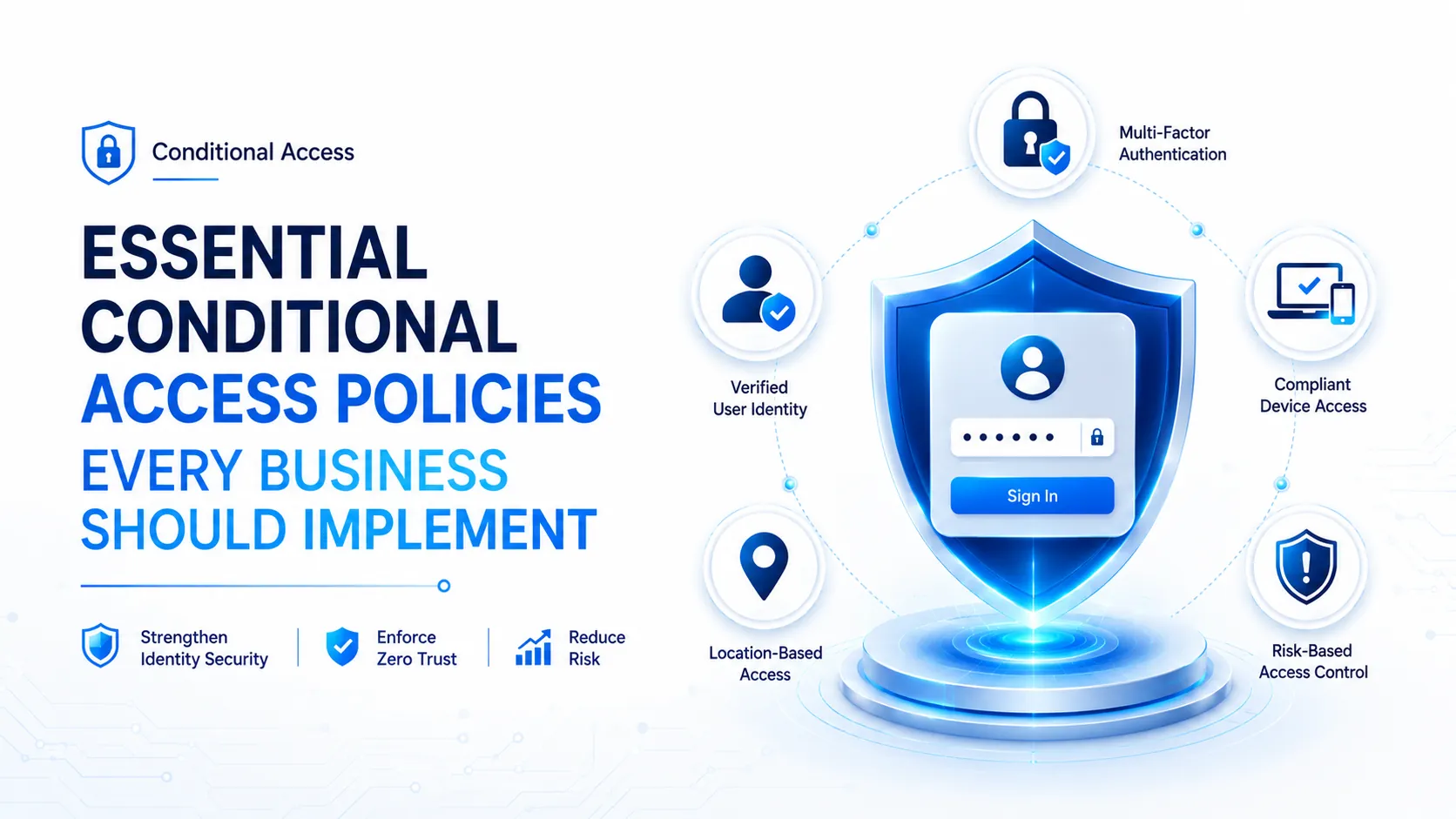
Essential Conditional Access Policies Every Business Should Implement
Identity-based attacks are now the leading cause of cloud security breaches. Attackers no longer need to break through firewalls or exploit software vulnerabilities when they can simply sign in using stolen credentials, bypass weak authentication methods, or hijack sessions from unmanaged devices.
The Conditional Access policies every business should implement are not optional security enhancements. They are the foundation of a Zero Trust security strategy in Microsoft 365. Without them, even organizations that have deployed MFA and Microsoft Intune are leaving critical gaps that attackers actively exploit.
In this guide, we cover the essential Conditional Access policies every business should have in place, how to deploy them safely, and what to watch out for along the way.
What Are Conditional Access Policies?
Conditional Access is the policy engine built into Microsoft Entra ID that evaluates every sign-in attempt and decides whether to allow it, block it, or require additional verification. It goes beyond simple username and password checks by evaluating the full context of each authentication request.
When a user attempts to sign in, Conditional Access evaluates signals including:
• Who is the user and what roles do they hold
• What device are they using and is it managed or compliant
• Where are they signing in from
• What application are they trying to access
• What is the current sign-in or user risk level
• What authentication method are they using
Based on those signals, the policy either grants access, requires additional verification such as multi-factor authentication, or blocks the sign-in entirely. When multiple policies apply to the same sign-in, Microsoft Entra enforces the most restrictive result.
Organizations that have already adopted a Zero Trust security approach often benefit most from Conditional Access because it makes identity verification continuous and context-aware rather than a one-time check at login.
Licensing Requirements
Before building a Conditional Access policy set, confirm that your Microsoft 365 plan includes the right licensing.
• Microsoft Entra ID P1 is required for standard Conditional Access policies and is included in Microsoft 365 Business Premium and E3 plans
• Microsoft Entra ID P2 is required for risk-based policies using sign-in risk and user risk signals and is included in Microsoft 365 E5 and EMS E5
• Microsoft Intune is required for device compliance-based policies and is included in Microsoft 365 Business Premium, E3, and E5
Organizations without Entra ID P1 can enable Security Defaults as a minimum baseline, though Security Defaults cannot be customized to the same degree as Conditional Access policies.
Before You Build Any Policy
Two steps must happen before you create a single Conditional Access policy. Skipping them is the most common cause of accidental lockouts.
First, create at least two emergency access accounts. These are cloud-only accounts with no connection to any individual employee. Store the credentials securely offline and exclude these accounts from every Conditional Access policy you create. If a misconfiguration locks out all administrators, these accounts allow recovery. Monitor sign-in logs for any activity on these accounts and alert immediately on any use.
Second, always deploy new policies in Report-Only mode before enabling enforcement. Report-Only mode evaluates the policy against real sign-ins and records what would have happened without blocking anything. Use the What If tool in Microsoft Entra to simulate specific user scenarios. Move to enforcement only after reviewing results with a pilot group and confirming there are no unintended impacts.
Establishing a consistent naming convention for your policies before you start also saves significant time as your policy set grows. A pattern such as CA001-AllUsers-AllApps-RequireMFA makes policies immediately readable during an audit or incident.
Not Sure Where Your Identity Security Gaps Are?
Every organization has different Conditional Access requirements. A quick security assessment can identify policy gaps, compliance risks, and the right deployment approach for your environment.
The Essential Conditional Access Policies
Based on current Microsoft guidance and real-world deployments across 2025 and 2026, the following policies form the baseline that every business should have in place.
1. Require MFA for All Users
Requiring multi-factor authentication for all users across all cloud applications is the single highest-impact Conditional Access policy any organization can implement. Microsoft reports that MFA blocks more than ninety nine percent of account compromise attacks.
Assign this policy to all users and target all cloud applications. Exclude emergency access accounts and any service accounts that cannot complete interactive MFA. Deploy in Report-Only mode first, communicate the change to users, then enforce.
Standard MFA methods including SMS verification remain vulnerable to phishing proxy attacks and SIM swapping. MFA is the essential foundation, but it is not the complete answer on its own.
2. Require Phishing-Resistant MFA for Administrators
Administrator accounts are the highest value targets in any Microsoft 365 environment. Standard push notification or SMS-based MFA is not sufficient for privileged roles. Microsoft recommends requiring phishing-resistant authentication methods for all admin accounts.
Phishing-resistant methods include FIDO2 security keys, Windows Hello for Business, and certificate-based authentication. These methods cannot be intercepted or spoofed by phishing proxy attacks because the authentication is cryptographically bound to the device and the service.
Apply this policy to Global Administrator, Exchange Administrator, SharePoint Administrator, Security Administrator, Conditional Access Administrator, and all other privileged directory roles. Set a sign-in frequency of four hours and disable persistent browser sessions for these accounts.
3. Block Legacy Authentication
Legacy authentication protocols including POP3, IMAP, SMTP AUTH, and older Office clients using Basic Authentication do not support multi-factor authentication. They cannot pass device state information to Conditional Access. According to Microsoft, more than ninety nine percent of password spray attacks use these protocols.
Blocking legacy authentication is one of the most effective policies available, but it requires a dependency audit first. Network printers, scanners, older line-of-business applications, and some backup tools often use SMTP AUTH or Basic Authentication. Identify and remediate these dependencies before enforcing the block, or those services will stop working.
Set the conditions to Exchange ActiveSync clients and Other clients, and set the grant control to Block access. Assign to all users.
4. Require a Compliant Device for Corporate Resources
Once MFA is in place and legacy authentication is blocked, requiring a managed and compliant device is the next critical layer. This policy works alongside Microsoft Intune compliance policies, which define what a compliant device looks like and write that status back to Microsoft Entra ID.
When a device falls out of compliance, for example because BitLocker is disabled or a required OS update is overdue, Entra ID receives the updated status and Conditional Access begins challenging or blocking that device’s sign-ins automatically.
Assign this policy to all users and target Exchange Online, SharePoint, Teams, and Microsoft 365 Apps. For personally owned iOS and Android devices where users have not enrolled in Intune, use Require app protection policy as the grant control instead. This protects corporate data inside managed apps without requiring full device enrollment.
5. Sign-In Risk Policy
Sign-in risk policies require Microsoft Entra ID P2. They evaluate each authentication attempt in real time for anomalous signals including impossible travel, sign-ins from known attack infrastructure, unfamiliar sign-in properties, and password spray patterns.
Configure the policy to target all users, apply to all resources, and set the sign-in risk condition to medium and above. For medium risk, require MFA. For high risk, block access or require MFA with a password change depending on your organization’s risk tolerance.
Organizations currently using the legacy sign-in risk policy in Microsoft Entra ID Protection must migrate to Conditional Access before October 1, 2026, when the legacy policy retires. Microsoft provides migration templates to simplify this process.
6. User Risk Policy
User risk evaluates the overall health of an account over time rather than a single sign-in event. A high user risk score typically means the account’s credentials have likely been compromised, for example through a data breach or sustained pattern of risky behavior.
Configure the policy to target all users, apply to all resources, and set the user risk condition to high. Require a secure password change to remediate the risk. Once the user completes a password change through a verified MFA method, the risk flag clears automatically.
Like sign-in risk policies, legacy user risk policies in Microsoft Entra ID Protection retire on October 1, 2026. Migrate to Conditional Access before that deadline.
7. Block Device Code Flow
Device code flow is an OAuth 2.0 method designed for devices without keyboards, such as smart TVs and printers. Attackers have increasingly weaponized it in social engineering campaigns. They initiate a device code authentication request and trick users into entering the code, which grants the attacker a valid access token without the user understanding what they have authorized.
Microsoft now includes blocking device code flow in its own managed Conditional Access policy templates. Block this for all users unless you have a documented and approved business requirement for it. Legitimate use cases are rare.
8. Session Controls for Unmanaged Devices
When a user accesses corporate resources from an unmanaged device, a stolen browser cookie can give an attacker persistent access without requiring reauthentication. Session controls address this by limiting how long sessions remain valid and preventing browsers from persisting signed-in sessions after they close.
Set sign-in frequency to one hour and persistent browser sessions to Never persistent for sign-ins from devices that are not compliant and not hybrid-joined. This ensures a stolen session cookie has limited value and that unmanaged devices must reauthenticate regularly.
The CIS Benchmark recommends sign-in frequency not exceed four hours for E3 tenants and twenty four hours for E5 tenants using Privileged Identity Management. For unmanaged devices, one hour is the practical recommendation for most organizations.
9. Location-Based Access Controls
Named location policies let you define trusted IP ranges such as office networks and VPN exit points and use them as conditions in Conditional Access. You can require MFA for sign-ins from outside those ranges or block access from specific countries entirely.
The right approach depends on your business. Requiring MFA from unfamiliar locations is effective and accommodates traveling employees without creating exceptions. Blocking entire countries works well only when you are certain no legitimate access will ever come from those regions. Overly aggressive location blocking creates an ongoing exception management burden.
Define your named locations first. Then create a policy that requires MFA for sign-ins outside trusted ranges, and a separate policy to block access from regions where your organization has no business presence. Document the justification for every blocked region.
10. Protect Access to Admin Portals
The Azure portal, Microsoft Entra admin center, Microsoft Intune admin center, and Microsoft Purview give administrators control over your entire security configuration. Access to these interfaces should be subject to stronger controls than standard Microsoft 365 applications.
Apply phishing-resistant MFA or at minimum require the Multifactor authentication strength for all users accessing these portals. Set sign-in frequency to four hours and disable persistent browser sessions. This policy should cover all users, not just administrators, because any user can navigate to these portals.
Recommended Deployment Order
Deploying all ten policies at once without validation is a reliable way to disrupt your organization. A phased approach reduces risk and gives you time to address unexpected impacts at each stage.
• Phase 1: Create emergency access accounts. Deploy Block Legacy Authentication in Report-Only mode and run a dependency audit
• Phase 2: Deploy MFA for All Users in Report-Only mode. Communicate to users. Enforce after reviewing results. Immediately follow with Phishing-Resistant MFA for Admins and Protect Admin Portals
• Phase 3: Ensure Intune compliance policies are in place and devices have had time to enroll. Deploy Require Compliant Device in Report-Only mode. Enforce after confirming fleet compliance
• Phase 4: Deploy Sign-In Risk and User Risk policies if you have Entra ID P2. Deploy Session Controls for Unmanaged Devices
• Phase 5: Deploy Block Device Code Flow, Location-Based Controls, and enforce Block Legacy Authentication now that the dependency audit is complete
Each phase should include a period of Report-Only monitoring, a pilot group enforcement, and then broad rollout. This approach catches unexpected failures in real user workflows before they affect the entire organization.
Common Mistakes to Avoid
From experience working with Microsoft 365 environments across different industries, these are the most frequent mistakes organizations make with Conditional Access.
• Not creating emergency access accounts before enabling any policy. This has permanently locked administrators out of tenants
• Skipping Report-Only mode and enforcing policies without validation first
• Applying MFA for All Users without excluding service accounts that cannot complete interactive MFA
• Blocking legacy authentication before completing a dependency audit
• Not migrating legacy risk policies from Microsoft Entra ID Protection before the October 2026 retirement deadline
• Using Require approved client app for BYOD mobile devices. Microsoft is retiring this control in favor of App Protection Policy
• Allowing the policy set to grow without quarterly audits and governance
Organizations that also invest in proactive security assessments and endpoint security solutions are better positioned to catch configuration gaps before they become incidents.
Benefits of Implementing Conditional Access Policies
Organizations that deploy a complete Conditional Access policy set typically experience measurable improvements across several areas.
• Significantly reduced risk of account compromise and credential-based attacks
• Automatic enforcement of device compliance without manual intervention
• Real-time response to risky sign-ins and compromised accounts
• Stronger protection for cloud and hybrid environments
• Improved compliance readiness for frameworks including ISO 27001, NIST, and SOC 2
• Reduced alert fatigue by automating responses to known risk signals
• Greater visibility into who is accessing what resources and from where
Businesses that combine Conditional Access with managed SOC services gain an additional layer of continuous monitoring and expert oversight on top of automated policy enforcement.
Frequently Asked Questions
What is the difference between Security Defaults and Conditional Access policies?
Security Defaults are a free set of pre-configured baseline settings that enable MFA for all users, block legacy authentication, and protect privileged roles. They cannot be customized. Conditional Access policies replace Security Defaults for organizations with Entra ID P1 or P2 licensing. They offer per-group targeting, risk-based conditions, session controls, and Report-Only mode. You cannot use both simultaneously. Enabling Conditional Access requires disabling Security Defaults first.
Do Conditional Access policies apply to guest and external users?
Yes. Guest users are subject to Conditional Access policies in the tenant they are accessing. They may not always be able to complete device compliance requirements if their device is managed by a different organization. A common approach is to require MFA for guests while applying a separate, lighter policy for device compliance. You can include or exclude guests using the Guest or external users option in the policy assignment.
Can Conditional Access policies accidentally block service accounts?
Yes, and this is one of the most common causes of disruption during initial MFA rollouts. Service accounts and sync accounts cannot complete interactive MFA and must be excluded from MFA-requiring policies. Use service principals with certificate-based authentication for automation workflows. Always document the justification for any service account exclusion and apply compensating controls such as IP-restricted named locations.
How does Conditional Access work with Microsoft Intune?
Intune compliance policies evaluate device health and write a Compliant or Noncompliant status back to Microsoft Entra ID. Conditional Access reads that status in real time and enforces it as an access condition. If a device falls out of compliance, Entra ID receives the updated signal and Conditional Access begins challenging that device’s sign-ins automatically. Devices must be enrolled in Intune and have compliance policies assigned for this integration to work.
What is Continuous Access Evaluation?
Continuous Access Evaluation extends Conditional Access enforcement beyond the initial sign-in. Without it, access tokens remain valid for up to one hour even if conditions change. CAE enables Microsoft 365 services to receive near-real-time signals from Entra ID and revoke sessions immediately when critical events occur, such as account disablement, password changes, or high-risk detections. It is automatically enabled for supported apps and runs alongside Conditional Access policies.
What should I do if a user is accidentally locked out by a Conditional Access policy?
Use the What If tool in Microsoft Entra ID under Conditional Access to identify which policy is blocking the user and why. Temporarily add the user to an exclusion group for that policy to restore access while you investigate. If administrators are broadly locked out, use an emergency access account to sign in and adjust the policy. This situation is almost always preventable by deploying in Report-Only mode first and maintaining properly configured emergency access accounts.
Final Thoughts
Identity is now the primary attack surface in Microsoft 365 environments. Conditional Access policies are not a set-and-forget feature. They require thoughtful design, phased deployment, ongoing monitoring, and regular review as your organization and the threat landscape both evolve.
The ten policies covered in this guide represent the baseline that every business should have in place. Start with MFA for all users, block legacy authentication, and protect your administrator accounts. Build out the remaining policies in phases as your Intune device fleet becomes compliant and your team becomes comfortable managing the policy set.
Organizations that combine a strong Conditional Access foundation with continuous security monitoring and managed detection capabilities are significantly better positioned to detect and respond to identity-based threats before they cause lasting damage.
Ready to Strengthen Your Identity Security?
Talk to our cybersecurity specialists about Conditional Access deployment, identity security assessments, compliance requirements, and managed SOC services tailored to your business.
