
Securing Remote Access: Restricting Personal Device Access to Only Azure Virtual Desktop (AVD) and Windows 365 (W365)
Overview
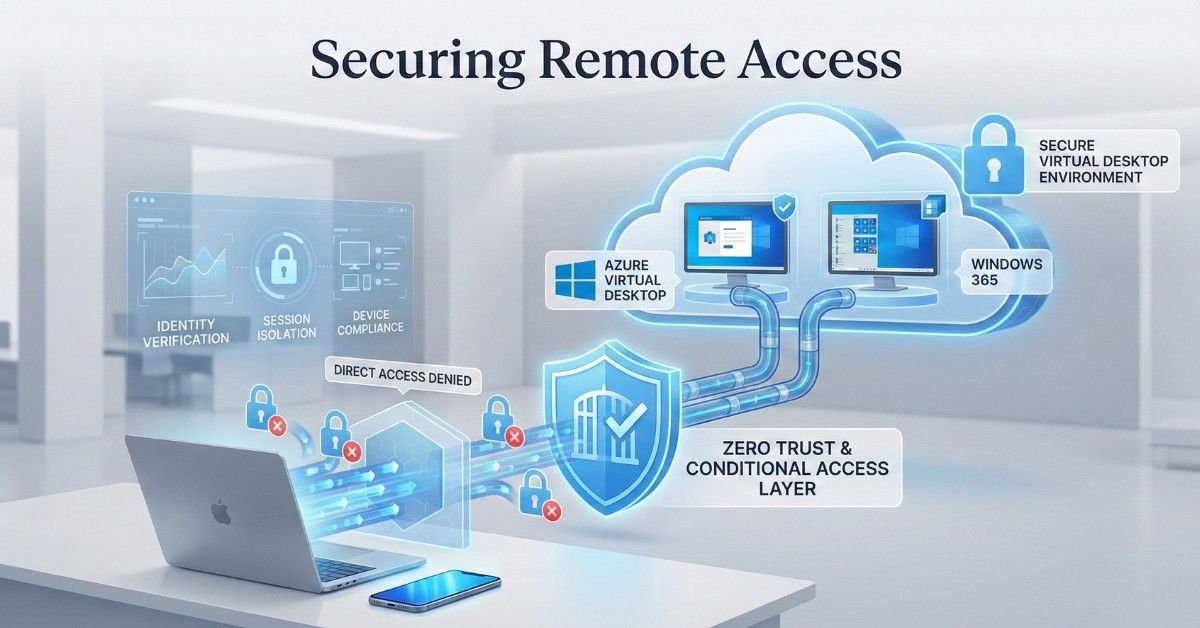
Securing Remote Access is essential when allowing remote users on personal devices to access Azure Virtual Desktop (AVD) and Windows 365 (W365) while restricting access to other cloud applications and organizational data. In this article, we discuss how organizations can safely enable BYOD access without exposing sensitive resources. Securing Azure Virtual Desktop (AVD) plays a critical role in maintaining a compliant and protected environment for remote work. By leveraging Microsoft security solutions such as Microsoft Intune, Microsoft Defender for Endpoint, Microsoft Entra ID P2, and Conditional Access policies, organizations can establish a strong and resilient security posture for AVD deployments.
1. Remote Access Configuration
To securely enable remote access to AVD from BYOD devices, follow these steps:
Conditional Access Policy:
- Target Resources: Include all Cloud Apps and exclude “Azure Virtual Desktop and Windows Cloud Login.”
- Access Control: Set to “Block” to prevent users from accessing corporate data on personal devices, applicable to remote users on BYOD.
2. Intune Compliance Policy for AVD
Configure an Intune compliance policy tailored for AVD to enforce security requirements:
- Bitlocker: Set to Required (if AVD supports TPM).
- Secure Boot: Set to Required.
- Firewall: Set to Required.
- TPM (Trusted Platform Module): Set to Required.
- Antivirus: Set to Required.
- Antispyware: Set to Required.
- Microsoft Defender Antimalware: Set to Required.
- Real-time Protection: Set to Required.
- Microsoft Defender Antimalware Security Intelligence: Ensure it is up to date.
- Device Risk Score: Enforce that devices must be at or below the risk score “Low” to be compliant.
3. Microsoft Defender for Endpoint Security Configuration
Enhance AVD security using Microsoft Defender for Endpoint by configuring the following:
- Antivirus Policy: Ensure that a comprehensive antivirus policy is in place.
- Firewall Application Control for Business: Implement firewall application controls to restrict unauthorized applications.
- Attack Surface Reduction: Configure real-time monitoring to prevent compromises and control potential ransomware threats.
4. Identity and Access Management Policies
To strengthen identity security and access management within AVD:
- MFA and SSPR: Ensure Multi-Factor Authentication (MFA) and Self-Service Password Reset (SSPR) are enabled.
- Identity Protection: Utilize User Risk and Sign-In Risk features to enforce MFA based on risk levels.
- Conditional Access Policy: Allow users to register MFA only from trusted locations.
- Password Protection: Implement policies to prevent the use of common and easily guessable passwords.
- Just-In-Time Access: Use Just-In-Time (JIT) access through Microsoft Defender for Cloud Apps to secure AVD resources.
5. Application Management
Deploy all necessary applications through Intune to ensure they are compliant and secure:
- Ensure that only managed and compliant applications are deployed to AVD sessions.
6. User Data Profile Management
To manage user data profiles securely:
- For Entra ID-joined AVD: Enforce the use of OneDrive for Business for storing user profiles instead of relying on FSLogix. This approach ensures data security and compliance while simplifying profile management.
Summary
By implementing these guidelines, you can secure Azure Virtual Desktop and Windows 365 environments against potential threats and ensure compliance with corporate security policies. This comprehensive strategy utilizes Microsoft Intune, Microsoft Defender for Endpoint, Microsoft Entra ID, and Conditional Access policies to deliver a secure and resilient AVD deployment.
info@ngcloudsecurity.com
